
Installing TiviMate on a Fire TV device starts with compatibility, not a download code. TiviMate’s recognised APK is intended for Android TV-style systems, while Amazon now sells both Android-based Fire OS devices and newer Vega OS models. Confirm the operating system first; only a compatible Fire OS device should follow the APK installation path.
On a compatible Firestick, the safe workflow is short: install the authentic Downloader app, grant its installation permission temporarily, open the official TiviMate address or developer-published code, verify the domain, install the package, disable the permission, delete the installer file, and add only a user-owned or authorised playlist. The player arrives empty.
Content and licensing notice: TiviMate is a media player and supplies no programming. Add only user-owned or authorised sources, verify territorial licensing, and avoid modified packages, mirrors, or credentials that bundle unverified content.
Quick Answer: How Do You Install TiviMate on Firestick?
TiviMate’s official site provides its current APK address and Downloader code for compatible Android TV devices. On Fire OS, install the authentic Downloader app, enable its installation permission only for the task, open tivimate.com/apk or the code published there, install TiviMate, disable the permission, remove the APK file, and import only authorised credentials. Vega OS devices require a different supported application.
| Step | Action | Why It Matters |
|---|---|---|
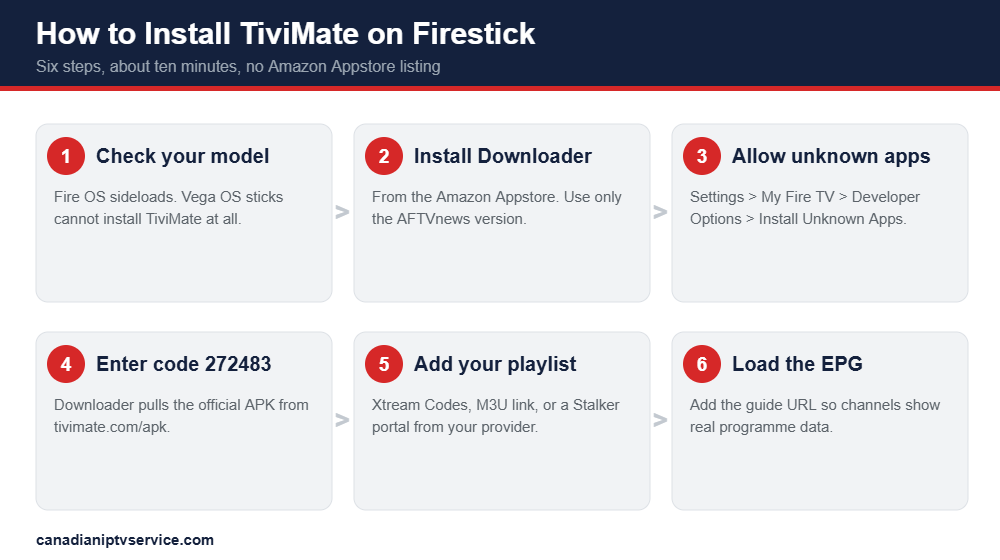
| 1 | Check your Firestick model | Newer Vega OS sticks cannot sideload any APK at all. |
| 2 | Install Downloader | This is the tool that fetches and installs the TiviMate APK. |
| 3 | Enable Install Unknown Apps | Fire OS blocks third-party installs until you allow Downloader. |
| 4 | Sideload with code 272483 | This pulls TiviMate from the official source, not a risky mirror. |
| 5 | Add your playlist | M3U or Xtream Codes connects TiviMate to your legal IPTV source. |
| 6 | Load the EPG | Without a guide URL, TiviMate shows channels but no programme data. |
Before You Start: Does Your Firestick Even Support Sideloading?
Amazon supports two Fire TV operating systems. Fire OS is Android-based and can run compatible APK packages; Vega OS uses a different application format. Check Settings > My Fire TV > About and Amazon’s current device documentation before continuing. If the device runs Vega OS, do not force an Android APK installation; choose a recognised app available for that device or use compatible Fire OS or Android TV hardware.
Check before you buy anything or start the install. Go to Settings > My Fire TV > About and read the device name. If it is a Fire TV Stick 4K Select or one of the newest HD models, you are on Vega OS. Everything older runs Fire OS, which is Android-based and sideloads normally.
| Device | Operating System | Can it run TiviMate? |
|---|---|---|
| Fire TV Stick 2nd / 3rd Gen | Fire OS (Android) | Yes, sideloading works |
| Fire TV Stick Lite | Fire OS (Android) | Yes, sideloading works |
| Fire TV Stick 4K | Fire OS (Android) | Yes, recommended |
| Fire TV Stick 4K Max | Fire OS (Android) | Yes, best performance |
| Fire TV Cube | Fire OS (Android) | Yes, sideloading works |
| Fire TV Stick 4K Select | Vega OS | No, sideloading is blocked |
| Newest Fire TV Stick HD | Vega OS | No, sideloading is blocked |
If your device is on the Vega OS list, your options are to use a Fire OS stick you already own, switch to an Android TV box or NVIDIA Shield, or use a different player that ships in the Amazon Appstore. TiviMate itself will not run.
What You Need Before Installing TiviMate on Firestick
Prepare a compatible Fire OS device, the authentic Downloader listing, enough free storage, a stable network, and credentials for a source you own or are authorised to use. Keep the official TiviMate address available on another screen so you can compare the domain before downloading. Write the server and guide information exactly, including protocol, punctuation, and capitalisation.
- A Fire OS Firestick: Fire TV Stick 4K or 4K Max is ideal. Vega OS devices will not work.
- A stable network: prefer 5 GHz Wi-Fi or Ethernet when available, and reduce playback quality if the Firestick cannot sustain the selected authorised source.
- Legal IPTV credentials: An M3U URL, Xtream Codes details, or a Stalker portal address from your authorised provider.
- An optional EPG URL: This is what fills the TiviMate guide with programme names and times.
- Free storage: Delete unused apps first, because a full Firestick is a common cause of “app not installed” errors.
- The Downloader app: Installed from the Amazon Appstore, published by AFTVnews. Do not install lookalike clones.
Step 1: Install the Downloader App on Your Firestick
Install Downloader from the Amazon Appstore and confirm the publisher shown in the current listing. Avoid similarly named subscriptions or packages reached through advertisements. Open the app once, review its permissions, and use it only to retrieve the TiviMate package from the recognised developer address. Downloader is an installation utility; it supplies no player account or programming.
- From the Firestick home screen, select Find, then Search.
- Type Downloader using the on-screen keyboard.
- Select the orange Downloader app published by AFTVnews.
- Click Get or Download and wait for it to install.
- Open Downloader once, and select Allow if it requests file access permission.
Step 2: Enable Install Unknown Apps for Downloader
Fire OS blocks third-party installation by default. Open Developer Options and allow installation for Downloader only, not for every application. The menu location changes across Fire OS versions, so follow the device’s current on-screen labels. After TiviMate is installed, return to this setting and turn the permission off to reduce the chance of an unrelated package being added later.
- Return to the Firestick home screen and open Settings.
- Select My Fire TV. On some devices this appears as Device & Software.
- Select About, highlight your device name, then press the select button seven times until it says “You are now a developer”.
- Go back to My Fire TV and open Developer Options.
- Open Install Unknown Apps.
- Find Downloader in the list and toggle it On.
If Developer Options is missing: that is normal on newer Fire OS versions. The seven-press trick on the device name in the About menu is what makes it appear. On older Fire TV Sticks, Developer Options sits directly under My Fire TV with no unlocking required.
Step 3: Sideload TiviMate Using Downloader Code 272483
Use the current APK link or Downloader code published on tivimate.com. Before selecting Install, confirm the address, package name, version information, and requested permissions. Do not use modified “Premium” builds, file-sharing mirrors, or packages supplied by a playlist seller. When installation finishes, delete the downloaded APK and remove temporary installation permission.
- Open Downloader and select the Home tab.
- Click the URL field to open the keyboard.
- Enter the code 272483, or type the URL tivimate.com/apk.
- Click Go and wait for the APK to download.
- When the installer appears, click Install, then Done.
- Delete the APK file when Downloader offers. Confirm the deletion twice to free storage.
That final delete step matters more than it looks. Firestick storage is tight, and leftover APK files quietly eat the space you will need for the guide cache later.
Step 4: Add Your IPTV Playlist to TiviMate
TiviMate opens without programming. Select the credential type supplied by your user-owned or authorised source, enter the server address and account details exactly, assign a descriptive playlist name, and allow the initial guide import to finish. Do not paste credentials into public converters or share screenshots. If login fails, recheck spacing, protocol, password characters, account status, and device allowance.
| Login Type | What You Receive | Best For |
|---|---|---|
| Xtream Codes | Username, password and server URL | Almost everyone, fewest typing errors |
| M3U playlist | One very long playlist link | Providers that only issue M3U links |
| Stalker portal | Portal URL and device MAC address | MAG-style and portal-based providers |
- Open TiviMate from your Apps list.
- Select Add playlist.
- Choose Xtream Codes, M3U playlist, or Stalker portal depending on what your provider issued.
- Enter your credentials exactly as supplied, with no leading or trailing spaces.
- Give the playlist a name, then confirm.
- Wait for the channel list to load, then let the guide populate in the background.
Tip: if the login fails, check for a stray space at the start or end of the server URL before you blame the provider. One invisible space breaks an IPTV login faster than a weak Wi-Fi signal ruins a live suit.
How to Set Up the EPG in TiviMate
Programme-guide data is optional metadata supplied separately from the player. Add only the XMLTV or guide address provided for your authorised source, choose the correct time-zone offset, and map it to the appropriate playlist. If categories remain blank, confirm the URL, refresh interval, account status, and source identifiers before clearing app data or reinstalling TiviMate.
- Open Settings inside TiviMate.
- Go to Playlists, then select your playlist.
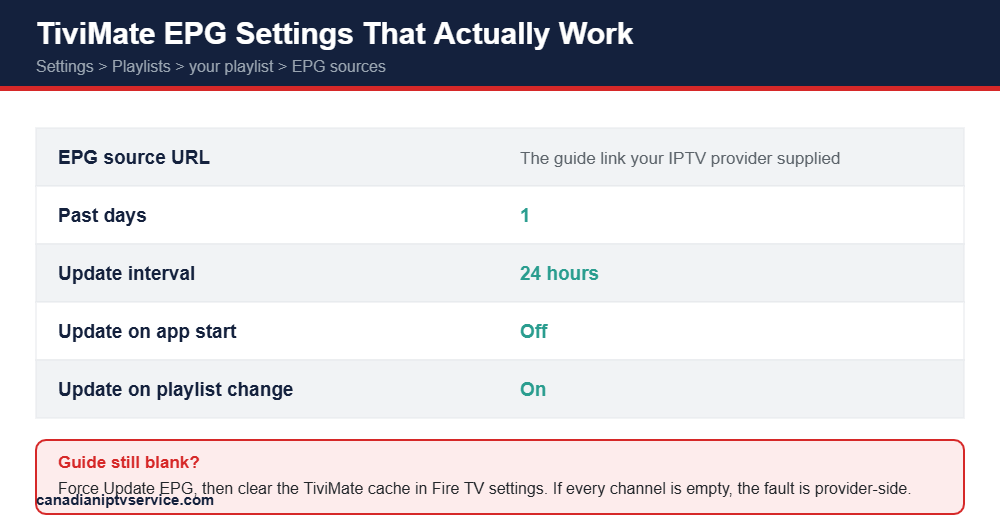
- Open EPG sources and add the guide URL your provider supplied.
- Set Past days to 1 and the update interval to 24 hours.
- Turn update on app start off, and update on playlist change on.
- Force an Update EPG and wait for the guide to fill in.
If the guide remains blank, confirm the authorised guide URL, time zone, account status, refresh interval, and source identifiers. Clear only the TiviMate cache after recording settings; clearing full app data removes saved configuration.
TiviMate Free vs TiviMate Premium
TiviMate’s free and Premium tiers change application features only; neither tier includes programming. Current prices, device limits, payment routes, and included controls may change, so confirm them through the recognised TiviMate account page before purchase. Use the free tier to inspect remote navigation and authorised playlist compatibility, then pay only if the additional application controls are genuinely useful.
| Feature | Free | Premium |
|---|---|---|
| Watch live channels | Yes | Yes |
| Single playlist | Yes | Yes |
| Multiple playlists | No | Yes |
| Favourites management | Limited | Yes |
| Scheduled recording | No | Yes |
| guide history and previous-programme controls | Limited | Yes |
| Interface customisation | No | Yes |
| Picture-in-picture | No | Yes |
| Parental controls | No | Yes |
Ignore any site selling a “TiviMate IPTV subscription”. TiviMate does not sell channels. Premium unlocks application features only, and anyone bundling the two is not affiliated with the developer. You supply the content source yourself, which is why it is worth starting from one of the best legal IPTV providers.
TiviMate Firestick Remote Controls Worth Learning
Learn the Fire TV remote before changing advanced settings. The directional ring moves through guide rows and menus, the centre button selects, Back closes the current panel, and long-press actions expose context options where supported. Keep favourite, search, captions, audio, and guide commands easy to reach, and avoid remapping essential buttons until the basic layout is familiar.
| Button | Action |
|---|---|
| Select | Open the highlighted channel |
| Back | Return to groups or the guide |
| Left / Right | Previous or next programme |
| Up / Down | Scroll through the channel list |
| Rewind / Fast-forward | Scroll channels without switching |
| Long-press Select | Channel options: subtitles, audio track, audio sync, favourites |
Recommended Internet Speed for TiviMate on Firestick
TiviMate performance depends on source encoding, resolution, Firestick model, decoder settings, Wi-Fi congestion, and concurrent household traffic. Measure speed beside the television, prefer 5 GHz Wi-Fi or Ethernet when available, close background applications, keep storage free, and reduce playback quality if the device overheats. Compare authorised local media to separate hardware and network limits from a source issue.
| Streaming Quality | Suggested Speed Per Stream | Best Setup |
|---|---|---|
| SD | 5 Mbps or higher | Basic Wi-Fi |
| HD | 10 Mbps or higher | 5 GHz Wi-Fi |
| Full HD | 15 Mbps or higher | 5 GHz Wi-Fi near the router |
| 4K | 25 Mbps or higher | Ethernet adapter strongly preferred |
| Multiple streams | Add speed for each device | Higher bandwidth plan |
Common TiviMate Firestick Problems and How to Fix Them
Troubleshoot from the device outward. Restart TiviMate and Firestick, confirm free storage and network quality, check account status and device allowance, refresh the authorised playlist and guide, compare hardware and software decoding, and test authorised local media or a second supported device. Reinstall only from the recognised developer source after recording settings and removing saved credentials.
| Problem | Likely Cause | Fix |
|---|---|---|
| App not installed | Low storage, corrupt APK, or a leftover modded TiviMate | Uninstall any old or modded TiviMate, free storage, re-download from tivimate.com/apk |
| Cannot sideload at all | The Firestick runs Vega OS | No fix. Use a Fire OS device, an Android TV box, or another player |
| Buffering | Weak Wi-Fi, network congestion, or decoder mismatch | Increase buffer to about 20 seconds, switch hardware and software decoder, use Ethernet |
| EPG blank | Missing or expired guide URL, corrupt cache | Re-enter the EPG URL, force an update, clear the TiviMate cache |
| Login failed | A stray space in the server URL, or expired credentials | Re-type the details exactly, then confirm the subscription is still active |
| No channels after login | Playlist expired or provider changed the portal | Update the playlist in Settings, then contact your provider |
| Premium will not activate | The five-device limit has been reached | Remove an old device in the Companion app or website, then re-activate |
| Audio out of sync | Stream or device offset | Long-press Select during playback and adjust audio sync |
| Random crashes | Cache build-up or background app conflicts | Clear cache, force-stop unused apps, and reboot the Firestick |
Is Installing TiviMate on Firestick Legal?
TiviMate and Fire TV devices are media technology and supply no programming. Whether an imported source may provide a programme depends on copyright, licences, and territory. Verify the operator and recognised rights holders before use, respect connection and access controls, and seek qualified legal advice for a specific situation. A paid account or professional website alone does not establish permission.
Installing outside an app store increases verification responsibility. Use only the recognised TiviMate domain, compare the package name and permissions, keep Fire OS security enabled, remove temporary installation access, delete the APK afterward, and avoid any altered or mirror-hosted package.
Verdict: The Cleanest Way to Install TiviMate on Firestick
The clean installation path is compatibility first. Confirm Fire OS rather than Vega OS, obtain Downloader from the Amazon Appstore, use the current TiviMate address or code published by the developer, grant installation permission temporarily, delete the APK afterward, and import only user-owned or authorised credentials. Keep the package updated and review permissions whenever Fire OS or TiviMate changes.
Beyond that, your experience depends far more on your IPTV provider and your home network than on TiviMate itself. A great player cannot rescue an overloaded server, and no amount of buffer tuning fixes a playlist full of dead channels.
FAQs
Is TiviMate available in the Amazon Appstore?
TiviMate’s recognised Fire TV installation route uses the APK address or Downloader code published on tivimate.com for compatible Fire OS devices. Store availability and device support can change, so check the developer site and your exact operating system before installation.
What is the TiviMate Downloader code?
TiviMate currently publishes code 272483 and the address tivimate.com/apk on its recognised site. Confirm both there before use, because codes and versions can change. Avoid mirrors, advertisements, altered packages, and files supplied by playlist sellers.
Why can I not install TiviMate on my new Firestick?
A new Fire TV device may run Vega OS rather than Android-based Fire OS. TiviMate’s APK is intended for compatible Android TV-style systems and cannot be installed natively on Vega OS. Confirm the exact model and operating system in Amazon’s current documentation.
How much does TiviMate Premium cost?
Premium pricing, taxes, payment routes, device limits, and included features can change. Check the recognised TiviMate account page immediately before purchase. The upgrade unlocks player controls only and supplies no programming, playlist, or distribution rights.
Does TiviMate include IPTV channels?
No. TiviMate is a media player and supplies no programming, playlists, subscriptions, or content rights. Import only a user-owned or authorised source, protect the credentials, and verify the operator and territorial permissions separately.
Which IPTV services work best with TiviMate?
Use only a user-owned or authorised source in a credential format supported by the recognised TiviMate version. M3U, Xtream-style, or portal compatibility does not prove licensing; verify the operator, territory, account terms, and connection allowance before import.
Why is my TiviMate EPG blank?
A blank guide can result from an incorrect or expired authorised guide URL, wrong time zone, account status, refresh interval, or identifier mapping. Recheck those details, force an update, and clear only the app cache after recording the configuration.
Do I need a VPN to use TiviMate on Firestick?
A VPN is not required for TiviMate and is not a substitute for permission. Respect territorial and access controls. For ordinary network privacy, assess the VPN provider, jurisdiction, logging policy, app permissions, speed impact, and the terms of every authorised source involved.