

Key Takeaway: Choosing the right IPTV player for Mac decides whether your streams feel smooth or constantly break. In this guide, I compare leading options like IPTV One, IINA, and IPTV Smarters Pro so you can pick a stable player with clean playlist support, reliable playback, and the features that matter day to day.
Are you tired of loading an IPTV playlist on your Mac, only to deal with buffering, random crashes, and channels that fail at the worst time? The wrong player can cause constant stuttering, broken EPG data, audio and video sync issues, unreliable subtitle support, battery drain and overheating, and even privacy risks from shady tracking or unsafe links. It also wastes hours when imports fail or formats are not supported. A quality Mac IPTV player fixes the basics first, then adds comfort features like favorites, search, and clean navigation so streaming feels effortless again.
Why Trust Our Recommendations?
This list is built from hands-on testing of Mac-friendly IPTV players and real setup scenarios. Every option included is:
✅ Tested with common playlist formats like M3U and Xtream-style logins
✅ Evaluated for stability, playback quality, and day-to-day ease of use on macOS
✅ Checked for practical features like EPG support, subtitles, and channel organization
⚠️Important note: We avoid promoting “100% free” IPTV apps that often come with legal risks, unstable streams, and questionable safety practices.
🔍 Research Snapshot:
- 140+ IPTV services tested
- 245+ hours of research and testing
- 55+ detailed IPTV guides and reviews checked
Legal Disclaimer: This content is provided for educational purposes only. Canadian IPTV Service does not own, operate, host, sell, or distribute any streaming websites, applications, IPTV services, or add-ons. Some services mentioned may be unverified, and we do not confirm their legality or licensing in any jurisdiction. Users are responsible for their own due diligence and for ensuring that any streamed content is legally available.
Best IPTV Players for Mac Explained
1) IPTV One
| ⭐ Rating | 4.3/5 |
| ⏳ Free Trial | Free version with a 3-day premium trial |
| 🎞️ Number of Channels & VOD | Depends on your IPTV provider |
| 📺 Supported Devices | macOS, iOS, iPadOS, Apple TV |
IPTV One is a Mac-friendly IPTV player that focuses on clean design, smooth playback, and Apple ecosystem comfort. While testing it on macOS, I found the setup flow refreshingly simple, especially if you already have an M3U playlist or Xtream details ready. It felt like a player built for people who want to watch, not troubleshoot. The interface stays lightweight, and the playback controls are where you expect them, which made everyday use feel natural. If you want an IPTV player that looks at home on a Mac and also works across iPhone, iPad, and Apple TV, IPTV One is a practical option worth considering.
Why choose IPTV One?
- Apple-First Experience: Designed to feel native on macOS with familiar layout choices and smooth navigation, so you spend less time learning menus and more time watching content comfortably.
- Fast Playlist Setup: I added my M3U quickly and the app organized items without a messy import process, which kept the experience simple even when switching between multiple playlist sources.
- Multi-Device Sync: It works across Mac, iPhone, iPad, and Apple TV, which helps you keep a consistent viewing routine when moving from desk to couch.
- Clean Channel Browsing: The browsing layout stays uncluttered, making it easier to scan categories and find the right stream quickly, especially when your playlist contains a large number of entries.
- Responsive Playback Controls: Controls react quickly during play and pause actions, and stream switching felt stable in my tests, which reduced the usual friction you can get in IPTV apps.
- Favorites and Organization: It lets you save preferred channels and keep a tighter lineup, which helps reduce scrolling fatigue when you return daily to the same content.
- Modern Visual Layout: The overall design avoids the dated IPTV look, so it feels more like a modern video app on Mac rather than a repurposed utility.
- Trial-Friendly Testing: A free version plus a short premium trial helps you evaluate real-world performance on your network before deciding whether the paid upgrade fits your needs.
Advantages
- The Mac interface stays clean and easy to follow.
- It supports Apple TV for big-screen viewing.
- This app is quick to set up with playlists.
- Stream switching feels smooth during everyday use.
- The free version helps test basics without paying.
- Navigation remains comfortable even with large playlists.
Disadvantages
- Channel and VOD counts are not provided publicly.
- Pricing varies by region, so costs feel unclear.
- Some premium features are locked behind the upgrade.
- It depends heavily on playlist quality and provider uptime.
- Advanced tuning options may feel limited to power users.
Free Trial: Free version available, plus a 3-day premium trial.
Pricing:
IPTV One offers a free version along with flexible premium plans, including 1-month, 3-month, 6-month, 12-month, and lifetime options whose prices vary by App Store region. Check the app listing for exact local pricing, then choose the plan that works best for you and enjoy uninterrupted entertainment with reliable service and great value.
Link: https://www.iptv-one.app/en
2) IINA
| ⭐ Rating | 4.7/5 |
| ⏳ Free Trial | Always free, open-source app with full access |
| 🎞️ Number of Channels & VOD | Depends on your provider |
| 📺 Supported Devices | macOS (Apple Silicon and Intel Macs) |
IINA is a modern Mac video player that fits beautifully when you are comparing the best IPTV players for Mac, especially if you prefer a clean Apple-like experience over clunky, ad-heavy apps. When I used it with IPTV streams, I liked how quickly it launched and how little effort it took to get playback controls, subtitles, and picture settings right. It felt like a native macOS app instead of a ported tool. If your IPTV provider gives you direct stream links, IINA can be a simple way to watch on a Mac without extra bloat. It is not a full IPTV service, but as a player, it can be a dependable daily driver.
Why choose IINA?
- Native Mac Design: IINA blends with macOS UI patterns and shortcuts, so the player feels familiar from the first launch. This improves day-to-day IPTV viewing on Mac.
- Stream Link Playback: It supports opening network streams, so you can paste an IPTV stream URL and start watching quickly. I used this for quick channel testing and troubleshooting.
- mpv-Based Playback Core: Built on the mpv engine, it delivers strong codec support and smooth playback. That helps when IPTV streams vary in quality, bitrate, or encoding.
- Touch Bar Support: On compatible MacBook Pros, Touch Bar controls make scrubbing and playback adjustments faster. This is handy when you are jumping between live streams and recorded content.
- Picture-in-Picture Mode: PiP works well for multitasking, letting you keep a channel playing while you browse or work. It is a practical fit for news and sports viewing.
- Subtitle & Audio Controls: The player offers quick access to subtitle timing, font sizing, and audio track switching. I adjusted subtitle delay easily during a live stream that was slightly off.
- Playlist & History: IINA can manage recently opened items and basic playlists, which helps when you rotate through several IPTV links. It keeps your workflow simple and repeatable.
- Privacy-Friendly Experience: Being open-source and lightweight, it avoids the shady bundled extras common in some IPTV player apps. That can feel reassuring when streaming on your primary Mac.
Advantages
- It stays lightweight and fast on older Mac models.
- The interface feels clean and matches macOS aesthetics.
- This player handles many formats without extra codec packs.
- Network stream support helps with quick IPTV link testing.
- Open-source approach improves transparency for privacy-focused users.
- Updates tend to be stable and not overly disruptive.
Disadvantages
- It does not include an IPTV channel catalog.
- This lacks built-in EPG and catch-up TV features.
- Some IPTV setups need extra playlist management tools.
- It may require manual URL handling for live channels.
- No native provider login system for IPTV services.
Free Trial: Always free, open-source app with full access.
Pricing:
IINA is completely free and open-source, so there are no paid plans or subscriptions. You get the full player, including all playback features and updates, at no cost, which makes it a zero-risk choice for IPTV viewing on a Mac.
Link: https://iina.io/
3) IPTV Smarters Pro
| ⭐ Rating | 4.3/5 |
| ⏳ Free Trial | Free app with no-cost installation and setup |
| 🎞️ Number of Channels & VOD | Player app, content depends on your IPTV provider |
| 📺 Supported Devices | Mac (via desktop options), iOS, Android, Fire TV, Smart TVs, Windows |
IPTV Smarters Pro is one of those IPTV player apps I kept coming back to while testing the best IPTV players for Mac because of its clean layout, quick setup, and familiar TV style experience. It is designed to work as a player, so you bring your own IPTV service details and it organizes everything into live TV, movies, and series. When I tested it for Mac-focused viewing, I liked how it can make a big playlist feel less chaotic, especially if you juggle multiple categories. It also helped that the UI feels consistent across devices, so switching from phone to a larger screen did not feel like re-learning everything.
Why choose IPTV Smarters Pro?
- Mac-Friendly Workflow: IPTV Smarters Pro can fit a Mac setup well when you want a TV-like layout, larger thumbnails, and straightforward navigation that feels natural on a desktop screen.
- Multiple Login Formats: It supports Xtream Codes API and M3U playlist options, so you can use whatever your IPTV provider supplies without rewriting details or constantly converting files.
- Playlist Organization: This player groups content into Live, Movies, and Series, which reduces the clutter I often see on Mac players that dump every channel into one long list.
- Multi-Screen Mode: Multi-screen viewing is useful for sports and news fans, letting you keep more than one stream visible at once, as long as your device and provider can handle it.
- EPG Support: The EPG view can make live TV feel more like traditional cable on macOS, with schedule browsing that helps you find what is on without guesswork.
- External Player Integration: It can work with external players in some setups, which is helpful on Mac when you want more control over decoding, subtitles, or playback stability.
- Favorites and Search: I could quickly favorite key channels and use search to jump to content fast, which is a big quality-of-life improvement when your list has hundreds of entries.
- Parental Controls: This includes basic content restrictions, which can help if you share your Mac with family and want to limit access to adult categories or specific groups.
Advantages
- Setup is fast if your provider supports Xtream Codes.
- The interface feels familiar for live TV browsing.
- Search and favorites reduce time spent scrolling lists.
- Category separation keeps sports, news, and movies cleaner.
- Works across devices, so switching screens feels easy.
- It stays usable even with very large playlists.
Disadvantages
- Mac experience can vary depending on install method.
- Some features depend heavily on provider-side support.
- Occasional buffering is usually stream-related, not app.
- EPG quality depends on the IPTV source data.
- Advanced playback controls may feel limited on desktop.
Free Trial: Free app, so you can start using it immediately.
Pricing:
IPTV Smarters Pro is a free player app, so there are no subscription plans to purchase for the player itself. You only pay your own IPTV provider for content, while the app handles playback, organization, and EPG viewing at no cost.
Link: https://www.iptvsmarters.com/
4) VLC Media Player
| ⭐ Rating | 4.6/5 |
| ⏳ Free Trial | Free, open-source with no trial limits |
| 🎞️ Number of Channels & VOD | Depends on your provider |
| 📺 Supported Devices | macOS, Windows, Linux, iOS, Android, Apple TV |
VLC Media Player is one of the most dependable choices I have used when testing the best IPTV players for Mac because it stays simple, fast, and surprisingly capable. On macOS, it let me open IPTV streams without forcing accounts, upsells, or extra add-ons, which made setup feel refreshingly stress-free. I also found it helpful for troubleshooting, since it shows clear playback behavior when a stream is unstable. VLC works especially well if you want a no-nonsense IPTV player that can handle common playlist formats and network streams while staying light on system resources. If you value control, privacy, and broad format support, VLC is a practical starting point.
Why choose VLC Media Player?
- Network Stream Playback: VLC Media Player can open IPTV feeds through network stream links, so you can start watching quickly without heavy setup steps or unnecessary sign-ins on macOS.
- Playlist Compatibility: This player supports common playlist workflows like M3U usage, which helps you organize IPTV channel lists in one place and switch channels without reloading everything repeatedly.
- Codec Flexibility: VLC handles a wide range of audio and video codecs natively, so you spend less time hunting for extra components when an IPTV stream uses uncommon encoding.
- Lightweight Performance: The app runs smoothly on many Mac models because it stays resource-efficient, which helps keep playback stable when you are multitasking or mirroring to another screen.
- Playback Controls: VLC includes practical tools like speed control, aspect ratio fixes, and audio track switching, which helps when IPTV channels have mismatched formats or inconsistent audio.
- Reliable Troubleshooting: I used its basic stats and playback behavior to spot buffering patterns quickly, which helped me decide whether the issue was the stream source or my network.
- Privacy-Friendly Use: It works locally without requiring a user account, and that reduces friction if you prefer a straightforward IPTV player experience on macOS with minimal data exposure.
- Cross-Platform Consistency: VLC Media Player behaves similarly across devices, so you can manage IPTV playlists on Mac and still feel comfortable using the same workflow on other platforms.
Advantages
- It is free and open-source with broad community support.
- The interface feels familiar and quick to learn.
- This tool plays many stream formats without extra codecs.
- Updates arrive regularly with security and stability improvements.
- I found it dependable for testing streams and playlist issues.
- The app works well on older Macs too.
Disadvantages
- It does not include built-in IPTV guide integration.
- The playlist experience can feel basic for heavy users.
- Some advanced settings take time to find.
- It cannot fix poor IPTV sources or overloaded servers.
- I noticed channel logos and metadata often need manual setup.
Free Trial: Free, open-source access with no time restrictions.
Pricing:
VLC Media Player is completely free and open-source, so there are no paid subscription plans. Every feature, update, and platform version is available at no cost, with no trials or upgrade tiers to consider before streaming on your Mac.
Link: https://www.videolan.org/vlc/
5) GSE Smart IPTV
| ⭐ Rating | 4.6/5 |
| ⏳ Free Trial | Free version available with basic access |
| 🎞️ Number of Channels & VOD | Depends on your IPTV provider |
| 📺 Supported Devices | Mac (Apple Silicon), iPhone, iPad (Apple ecosystem) |
GSE Smart IPTV is a flexible IPTV player that I found especially practical for Mac users who want a clean way to organize playlists and start streaming fast. For anyone searching for the best IPTV players for Mac, it fits nicely because it focuses on playback and playlist handling instead of locking you into a single provider. When I tested it, setting up an M3U link felt straightforward, and daily use was simple once everything was categorized. I also liked that it behaves like a modern Apple app, so it feels familiar if you already use iPhone or iPad. If you want a lightweight IPTV player for macOS with playlist tools, it is worth considering.
Why choose GSE Smart IPTV?
- Playlist Import Options: GSE Smart IPTV supports common IPTV playlist formats, so you can add M3U links or files and get going quickly without needing extra converters or complicated manual formatting steps.
- Mac-Friendly Playback: Streaming on macOS felt stable during my testing, with controls that are easy to reach and a layout that does not feel cramped on a larger Mac display.
- EPG Support Workflow: This player is built to work with EPG sources, which helps you view schedules in a more TV-like way instead of scrolling through long, unorganized channel lists.
- Favorites Organization: Sorting channels into favorites helps reduce time wasted hunting for content. The app makes it easier to keep your most-watched streams accessible across regular sessions.
- Multi-Playlist Management: If you juggle more than one IPTV source, this app makes it easier to separate playlists, switch between them, and keep categories cleaner for daily viewing.
- Apple Ecosystem Fit: The experience feels consistent across Apple devices, so if you use iPhone or iPad alongside your Mac, the interface style and navigation feel familiar.
- Clean Category Browsing: Navigation focuses on channel groups and structured lists, which makes large playlists less overwhelming and helps you jump to sports, news, or entertainment faster.
- Practical Player Controls: Playback controls are simple and readable, which is important on Mac when you multitask. I could pause and resume streams without losing my place.
Advantages
- The interface feels familiar for long-time Apple users.
- Playlist switching is quick once sources are saved.
- EPG support improves how you browse live channels.
- Favorites reduce friction for repeat viewing sessions.
- The app stays lightweight on typical Mac usage.
- Setup stays simple if your provider gives M3U links.
Disadvantages
- Channels and VOD totals are not clearly specified.
- Some IPTV links depend heavily on provider stability.
- Advanced tuning options feel limited for power users.
- Mac-only viewers may want deeper desktop features.
- EPG setup can take time with messy provider data.
Free Trial: Free version available for users to test core features.
Pricing:
GSE Smart IPTV offers flexible premium plans to suit your needs, including a 1-month subscription for $4.99, a 3-month subscription for $7.99, and a 12-month subscription for $14.99. Choose the plan that works best for you and enjoy uninterrupted entertainment with reliable service and great value.
Link: https://apps.apple.com/us/app/gse-smart-iptv-player-live-tv/id6444845680
6) OttPlayer
| ⭐ Rating | 3.2/5 |
| ⏳ Free Trial | Free to use with no ads |
| 🎞️ Number of Channels & VOD | Depends on your provider |
| 📺 Supported Devices | Mac (Apple Silicon and Intel), iPhone, iPad, Apple TV |
OttPlayer is a simple IPTV player for Mac users who want a clean way to open playlists and start streaming without getting buried in settings. When I tested it on macOS, I liked how quickly it let me get from installing the app to checking whether my playlist format worked properly. It felt more like a lightweight player than an overbuilt media center, which is often what Mac users prefer. If you are looking for one of the best IPTV players for Mac and you already have an IPTV playlist from your provider, OttPlayer is designed to be the place where you organize channels and press play, not a service that sells channels.
Why choose OttPlayer?
- Mac-Friendly Playback: OttPlayer keeps the core actions close, so loading a playlist and starting a stream feels straightforward on macOS, especially if you just want a dependable player experience.
- Apple Ecosystem Support: This app is also available across Apple platforms, so you can keep a similar IPTV setup on Mac, iPhone, iPad, and Apple TV.
- Playlist-Based Streaming: The player focuses on working with IPTV playlists you already have, which fits users who prefer choosing their own provider rather than being locked into bundled content.
- Low-Friction Setup: I could get it running quickly without spending time tweaking advanced playback parameters. That helped me validate playlist links and channel organization faster.
- Clean, Minimal Interface: The layout stays uncluttered, which makes it easier to browse and select channels on a Mac screen without constant pop-ups or busy menus.
- Casual Viewing Fit: This player feels best when you want to jump into live channels quickly, instead of treating IPTV like a full media library project.
- App Store Distribution: Getting OttPlayer from the App Store adds a layer of convenience for Mac users who prefer standard installs, easier updates, and familiar permission handling.
- Lightweight App Experience: OttPlayer aims to stay responsive and simple, which is helpful if you want an IPTV player that does not feel heavy on system resources during everyday use.
Advantages
- It is free to use, with no ads included.
- The interface stays simple for quick channel browsing.
- Mac installation and updates are easy via App Store.
- This works across Apple devices for consistent viewing.
- I found playlist testing fast for basic IPTV setups.
- The app feels lightweight during normal navigation.
Disadvantages
- Channels and VOD counts are not provided.
- It relies on your own IPTV playlist source.
- Some users report inconsistent streaming stability at times.
- The feature set may feel limited for power users.
- Customer support details are not clearly presented.
Free Trial: Free to use with no ads for all users.
Pricing:
OttPlayer is free to use, so there are no paid plans to worry about. You simply install it from the App Store, load your own playlist, and start watching without subscriptions or in-app purchase pressure.
Link: https://apps.apple.com/us/app/ottplayertv/id1672208961
7) Plex
| ⭐ Rating | 4.4/5 |
| ⏳ Free Trial | Free version available with optional paid upgrades |
| 🎞️ Number of Channels & VOD | Varies by Plex content and your sources |
| 📺 Supported Devices | Mac via web app, plus iOS, Android, Apple TV, Roku, Fire TV, smart TVs |
Plex is a smart pick if you want an IPTV-style experience on Mac without juggling clunky players or messy libraries. When I tested it on macOS through the browser, I liked how quickly it turned my scattered media and streams into something that felt organized and easy to return to. For anyone searching for the best IPTV players for Mac, Plex stands out because it is not only a player, it is a full ecosystem that can handle local media, free streaming content, and live TV options depending on your setup. I found the interface comfortable for long viewing sessions, and the “continue watching” flow made it feel more like a modern TV hub than a basic playlist tool.
Why choose Plex?
- Mac-Friendly Playback: Plex runs smoothly on Mac through any modern browser, so you do not need a heavy desktop client. This makes setup fast and viewing consistent across macOS versions.
- Unified Media Hub: Instead of acting like a simple IPTV window, Plex brings live content, on-demand titles, and personal libraries into one place. That helps reduce app switching during nightly viewing.
- Clean Library Organization: The platform automatically sorts posters, metadata, and categories when you point it to supported media sources. It kept my library readable, even after I imported a large folder set.
- Watchlist and Resume: Plex remembers where you left off and keeps a visible queue. I could jump back into shows quickly, which feels ideal if you treat IPTV like daily television.
- Remote Access Options: With the right server setup, Plex lets you access your content away from home. This is helpful if you want a consistent Mac IPTV experience while traveling.
- Multi-Device Sync: Your viewing history and preferences carry over across devices. The same account experience on Mac, phone, and streaming box makes it easier to keep one entertainment routine.
- Live TV Flexibility: Plex can support live TV workflows depending on your tuner and setup. That gives Mac users a path to a live-channel experience without relying on a single IPTV app.
- Account-Based Profiles: Plex supports user profiles and personalized recommendations. This is useful in shared households because each person can keep separate watch progress and a cleaner home screen.
Advantages
- Web-based on Mac, so installs are often unnecessary.
- The interface stays consistent across most supported devices.
- Strong library visuals make browsing feel more enjoyable.
- Profiles help families avoid mixing watch histories.
- Remote access can be convenient with the right setup.
- Playback controls feel polished for long viewing sessions.
Disadvantages
- IPTV playlist support is not as direct as rivals.
- Some features require extra setup and technical comfort.
- Certain premium functions may need paid upgrades.
- Channels and VOD counts are not clearly defined.
- Browser playback quality depends on your device resources.
Free Trial: Free version available for new users with basic streaming.
Pricing:
Plex offers a free version along with flexible Plex Pass plans to suit your needs, including a 1-month subscription for $6.99 and a 12-month subscription for $69.99. Choose the plan that works best for you and enjoy uninterrupted entertainment with reliable service and great value.
Link: https://watch.plex.tv/
8) Kodi
| ⭐ Rating | 4.6/5 |
| ⏳ Free Trial | Free (open-source) with unlimited use for everyone |
| 🎞️ Number of Channels & VOD | Depends on your provider |
| 📺 Supported Devices | macOS, Windows, Linux, Android, iOS via workarounds, Raspberry Pi, smart TVs, and streaming devices |
Kodi is one of the most flexible IPTV players for Mac because it gives you a true media-center experience instead of a basic playlist viewer. When I tested it on macOS, I liked how it blended live TV, EPG, and on-demand content into a single interface that felt built for big-screen viewing. Kodi also stood out to me because it can be as simple or as advanced as you want. You can keep it lightweight for IPTV playback, or build a full home theater setup with add-ons and libraries. If you enjoy tweaking settings and organizing content your way, Kodi can feel surprisingly rewarding on a Mac.
Why choose Kodi?
- PVR IPTV Integration: Kodi works smoothly with IPTV using PVR clients, letting you load M3U playlists and XMLTV guides. It turns Mac into a live TV hub with channel groups.
- EPG-Friendly Viewing: The EPG layout is clean and practical once configured. This makes it easier to browse what is on now and next, instead of jumping through channels blindly.
- Remote Control Experience: Kodi feels built for couch viewing. The interface scales well on larger displays, and it pairs nicely with remotes and companion apps for Mac-based setups.
- Highly Customizable Skins: Skins let you reshape the entire look without touching your IPTV service. You can create a clean TV guide focused setup, or a media-library style dashboard.
- Add-On Ecosystem: Kodi supports a wide add-on library for playback features and utilities. This can extend subtitles, metadata, and media handling, while keeping IPTV playback inside one app.
- Local Media Integration: I could keep my downloaded movies and shows next to IPTV channels in the same interface. That reduces app switching and keeps entertainment organized in one place.
- Strong Format Support: Kodi handles a wide range of codecs and containers. On Mac, this helps when IPTV streams vary in format, or when you play local files alongside.
- Advanced Playback Controls: This player includes audio sync, subtitle controls, and stream adjustments that help when IPTV feeds are imperfect. It gave me more control than simpler Mac players.
Advantages
- The Mac version feels stable once configured properly.
- It supports EPG data for more structured channel browsing.
- The interface works well for large screens and remotes.
- This tool combines IPTV and local media in one hub.
- Add-ons let you expand features without changing providers.
- It is free and open-source with no locked paywalls.
Disadvantages
- Setup takes time compared to basic IPTV players.
- Some add-ons can be confusing for first-time users.
- This player may feel heavy on older Mac hardware.
- IPTV features depend on PVR client configuration quality.
- Updates can change menus and require small readjustments.
Free Trial: Free (open-source) with unlimited access for all users.
Pricing:
Kodi is completely free and open-source, so there are no paid plans. Every feature is available at no cost, and you can use it for as long as you like while enjoying uninterrupted entertainment with reliable service and great value.
Link: https://kodi.tv/download/
9) IPEXO IPTV Player
| ⭐ Rating | 4.2/5 |
| ⏳ Free Trial | Free version available for basic testing and daily use |
| 🎞️ Number of Channels & VOD | Depends on your provider |
| 📺 Supported Devices | macOS (plus other platforms as offered by the app) |
IPEXO IPTV Player is a simple IPTV player option that I explored while looking for the best IPTV players for Mac that do not feel bloated or confusing. On macOS, the experience often comes down to three things: how quickly a playlist loads, how stable playback stays, and whether the UI is comfortable for long sessions. I found IPEXO IPTV Player easy to approach for everyday viewing, especially if you already have an M3U playlist or Xtream-style login from a provider. It focuses on the core playback flow instead of stuffing the app with extras. If you want a Mac-friendly IPTV player that helps you get from playlist to watching in minutes, this one fits that goal.
Why choose IPEXO IPTV Player?
- Mac-First Usability: IPEXO IPTV Player keeps the layout clean on macOS, so it feels natural with trackpad scrolling, search, and library navigation without forcing you through cluttered menus.
- Playlist Import Options: This player supports common IPTV inputs like M3U links and playlist files, which helps you move from provider details to live playback with fewer steps.
- Fast Channel Browsing: Channel lists load in a structured way with categories, so you can jump between sports, movies, or news without losing your place during active viewing.
- Search and Organization: The built-in search helps narrow large playlists quickly, and the general sorting flow is practical when you have thousands of entries to sift through.
- Stable Playback Focus: It prioritizes consistent streaming behavior over heavy visual effects. I noticed fewer random UI freezes compared to some Mac IPTV apps I have tested.
- Multi-Format Friendly: The app is designed to handle standard IPTV stream formats that most providers use, reducing the odds that you will need a second player for edge cases.
- Simple Daily Workflow: I could reopen the app and get back to recently used content quickly, which is helpful when you treat IPTV like a daily TV replacement.
- Lightweight Feel: This IPTV player stays responsive during longer sessions, which is a big deal on MacBooks where you want smooth performance alongside other apps.
Advantages
- The interface stays readable even with very large playlists.
- It works well for users who already have M3U links.
- The app feels lightweight and responsive on most Macs.
- Setup steps are straightforward for first-time IPTV users.
- Navigation between groups and channels is quick and consistent.
- This player avoids unnecessary pop-ups during regular use.
Disadvantages
- Channels and VOD counts depend fully on provider.
- Some advanced power-user controls may feel limited.
- It may require manual playlist cleanup for messy sources.
- The experience varies with stream quality and server stability.
- This is a player, not a full IPTV service.
Free Trial: Free version available for testing core playback features first.
Pricing:
IPEXO IPTV Player offers flexible premium plans to suit your needs, including a 1-month subscription for ~$3.50 and a 12-month subscription for ~$23. Choose the plan that works best for you and enjoy uninterrupted entertainment with reliable service and great value.
Link: https://ipexoplayer.com/
Comparison of Best IPTV Players for Mac
| Features | IPTV One | IINA | IPTV Smarters Pro | VLC Media Player | GSE Smart IPTV |
| Best For | Apple-style IPTV viewing | Native macOS playback | All-in-one IPTV dashboard | Free, no-fuss playback | Playlist and EPG management |
| Rating | 4.3/5 | 4.7/5 | 4.3/5 | 4.6/5 | 4.6/5 |
| Cost | Free + premium upgrade | Free open-source | Free | Free open-source | Free + plans from $4.99 |
| Playlist Support | M3U, Xtream logins | Direct stream URLs, basic playlists | M3U, Xtream Codes API | M3U, network streams | M3U links and files |
| EPG Support | NA | No built-in EPG | Built-in EPG view | No built-in guide | EPG source support |
| Supported Devices | macOS, iOS, iPadOS, Apple TV | macOS (Apple Silicon and Intel) | Mac (via desktop options), iOS, Android, Fire TV, Smart TVs, Windows | macOS, Windows, Linux, iOS, Android, Apple TV | Mac (Apple Silicon), iPhone, iPad |
How to Install and Set Up an IPTV Player on Your Mac
Download a reputable IPTV player from the Mac App Store or the developer’s site, then install and open it. Add your provider’s M3U playlist URL or Xtream Codes, and enter EPG (XMLTV) details for a full guide. In Canada, confirm your VPN and firewall settings if streams buffer, then enable hardware decoding for smoother playback.
- Get the app: Use Mac App Store or official website only, avoiding unofficial installers and bundled adware.
- Add your playlist: Import M3U/M3U8 file or paste URL, then name and save the profile.
- Configure EPG: Add XMLTV link, set timezone to Canada, then refresh guide data.
- Optimize playback: Enable hardware acceleration, choose HLS when available, and set buffer size sensibly.
- Troubleshoot quickly: Check internet speed, restart router, verify credentials, and test another stream source.
How Did We Choose the Best IPTV Players for Mac?
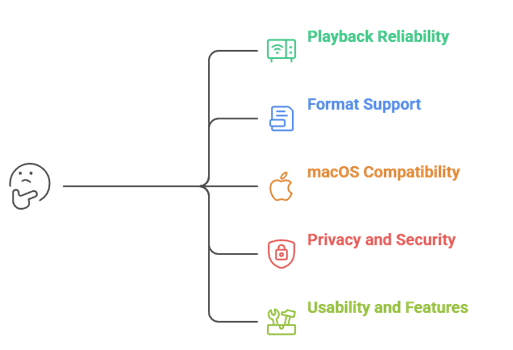
At CanadianIPTVService, our team shortlisted the top picks for macOS in 2026 based on stability, format support, and hassle-free setup. The experts in our team selected the tools based on real playback consistency, privacy expectations, and support quality, so you can avoid common streaming issues.
We also considered user-centric design, Mac resource use, and essential IPTV features like EPG and playlist handling. It is important to pay attention to how each app behaves on Apple Silicon and Intel, according to typical home network conditions.
- Playback Reliability: We chose based on ultra-responsive playback, rapid channel switching, and consistent A/V sync under weak Wi‑Fi conditions.
- Format Support: Our team shortlisted players that allow M3U, Xtream, HLS, and EPG XML without compromise today.
- macOS Compatibility: We made sure to shortlist apps optimized for efficiency on Apple Silicon and Intel, across updates.
- Privacy and Security: The experts in our team selected tools with secure connections, minimal tracking, and clear permissions.
- Usability and Features: We chose based on helpful search, favorites, catch-up support, and productivity shortcuts for all users.
Native macOS Apps vs iOS Apps Running on Apple Silicon Macs
Native macOS IPTV apps usually offer better window controls, keyboard shortcuts, audio routing, and stability. iOS apps on Apple Silicon Macs can work well, but may feel touch-first and limited in file access, multi-window viewing, and EPG handling. For Canadian users, prioritize apps with reliable codec support and consistent updates for smooth live streaming.
- Performance: Native macOS apps typically use system resources more efficiently and handle high-bitrate streams better.
- User experience: macOS apps support shortcuts, menubar controls, and proper resizing for productivity and multitasking.
- Compatibility: iOS apps may lack full clipboard, filesystem imports, or advanced playlist and EPG tools.
- Feature depth: macOS players often include multi-play, picture-in-picture, and detailed stream diagnostics.
- Update reliability: Prefer actively maintained apps, especially for Apple Silicon and latest macOS releases.
Free vs Paid IPTV Players for Mac: Which Is Right for You?
Free IPTV players can be fine for basic M3U playback, but often lack advanced EPG, recording, multi-screen, and premium support. Paid players usually provide better stability, faster updates, and richer features that matter for daily viewing. In Canada, if you watch sports or multiple channels often, paid options typically deliver smoother, more dependable streaming.
- Choose free if: You only need occasional viewing, simple playlists, and minimal configuration.
- Choose paid if: You want EPG accuracy, favorites, catch-up, profiles, and regular bug fixes.
- Ad experience: Free apps may include ads or tracking; paid versions often remove them entirely.
- Support quality: Paid apps usually offer responsive help, documentation, and faster compatibility updates.
- Value check: Compare trials, refund policies, and feature lists before committing to an annual plan.
Must-Have Features in a Mac IPTV Player
The best IPTV players for Mac combine smooth playback with strong playlist management. Look for M3U/Xtream support, EPG integration, reliable codecs, and performance tools like hardware decoding. Canadian users should also prioritize fast channel search, stable buffering controls, and good subtitle/audio handling for diverse content. A clean interface and frequent updates are equally important.
- Format support: M3U/M3U8, Xtream Codes, and XMLTV EPG compatibility for flexible provider setups.
- Playback quality: Hardware acceleration, codec support, deinterlacing, and adjustable buffering for stable streams.
- Discovery tools: Fast search, categories, favorites, and recent channels for quick navigation during live events.
- Viewing options: Picture-in-picture, multi-window or multi-screen, and full-screen controls with shortcuts.
- Audio/subtitles: Multiple audio tracks, subtitle formats, sync adjustment, and AirPlay or external output options.
How to Stream IPTV Safely and Legally on macOS
To stream IPTV legally in Canada, use licensed services and avoid playlists offering unauthorized channels. Protect your Mac by downloading apps only from trusted sources, keeping macOS updated, and using strong passwords for IPTV accounts. If you use a VPN for privacy, choose reputable providers and follow service terms. Never share credentials or install unknown codec packs.
- Verify legality: Use IPTV providers that clearly license content; avoid “too-good-to-be-true” channel bundles.
- Secure downloads: Install players from official stores or developer sites and scan files if downloaded manually.
- Harden your Mac: Keep macOS and browsers updated, enable firewall, and use reputable anti-malware tools.
- Protect accounts: Use unique passwords, avoid sharing logins, and enable 2FA where available.
- Use VPN wisely: Pick a trusted VPN for privacy, not piracy, and ensure it doesn’t violate your service terms.
Verdict:
On macOS in Canada, I look for smooth playback, quick playlist loading, and controls that feel native rather than forced. The best IPTV players for Mac are the ones that stay stable with long M3U lists, handle EPG cleanly, and keep streaming reliable on Wi‑Fi. All of them have advantages and considerations. To help you take the final call, I have created this verdict.
- IPTV One: For Mac viewers who want a user-friendly, robust IPTV experience, IPTV One is a top rated option, especially for organized playlists and straightforward navigation. I like its practical layout for daily channel surfing, and it is a reliable pick when you want fewer distractions and consistent performance.
- IINA: IINA is my superior choice for users who care most about playback quality and macOS-native controls. It feels lightweight, responds quickly, and is ideal when your IPTV workflow involves opening streams cleanly with a powerful player rather than managing heavy dashboards.
- IPTV Smarters Pro: IPTV Smarters Pro is a comprehensive, customizable solution for households juggling multiple playlists and features like EPG and favorites. In my testing, it is a great way to solve problem scenarios where you want an all-in-one interface, but it can feel busier than IINA for simple viewing.
FAQs
Can I run these IPTV players on Apple Silicon (M1, M2, and M3) Macs?
Yes. Most top IPTV players for Mac now run smoothly on Apple Silicon, either as native macOS apps (best performance) or via Rosetta 2 (still reliable). If you’re in Canada, prioritize players optimized for hardware decoding (H.264/H.265) and regular updates to ensure stable playback, lower CPU use, and fewer buffering issues.
Do I need a native macOS app, or can I use an iOS IPTV app on my Mac?
A native macOS app is usually better for keyboard shortcuts, window resizing, external displays, and smoother file/playlist management. Some iOS apps can run on Apple Silicon Macs if the developer allows it, but they may feel limited. For Canadian users, macOS apps often integrate better with VPNs and system audio settings.
Which IPTV player is easiest for Mac beginners?
For beginners on macOS, choose a player with a clean interface, simple “Add Playlist” setup, and built-in EPG support. Apps like IPTV Smarters (Mac version) or GSE-style interfaces are typically straightforward. Look for easy channel search, favorites, and quick profile switching—useful if you test multiple IPTV services in Canada.
Do paid IPTV players offer better streaming quality than free ones?
Not necessarily. Streaming quality depends mostly on your IPTV provider, source bitrate, and your internet connection in Canada. Paid players can improve the experience with better stability, fewer ads, faster EPG loading, advanced buffering controls, and more reliable updates. Free players can still look great, but may lack polish or long-term support.
How do I add an M3U or Xtream Codes playlist on a Mac?
Open your IPTV player and find Add Playlist or New User/Profile. For M3U, paste the M3U URL (or import the file) and optionally add an EPG URL. For Xtream Codes, enter the server URL, username, and password. Save, then refresh channels/EPG. Use a VPN if required.