

Key Takeaway: Finding the best IPTV player for Linux comes down to stability, format support, and how smoothly it handles M3U and EPG files. Trusted options like VLC Media Player, Kodi, and IPTVnator cover most needs, from quick playback to a full TV-like interface with guide support and customization.
Are you trying to watch IPTV on Linux and tired of players that crash mid-stream, refuse to load your playlist, or feel like they were not built for real daily use? Poor-quality and unverified players can cause constant buffering, broken M3U imports, missing EPG data, sudden app freezes, audio and video sync issues, and even privacy risks from shady add-ons or trackers. In the worst cases, you end up wasting hours troubleshooting instead of relaxing. A solid IPTV player fixes that. It keeps streams stable, organizes channels cleanly, and makes your setup feel effortless.
Why Trust Our Recommendations?
This list is built from real testing on Linux with common IPTV formats and day-to-day viewing needs. Every IPTV player included here is:
✅ Verified for stable playlist playback and Linux compatibility
✅ Checked for M3U support, EPG handling, and practical channel navigation
✅ Tested with real-world streaming scenarios, not just feature claims
⚠️ Important note: We avoid recommending tools that rely on questionable sources or encourage risky streaming habits. Reliability and safety come first.
🔍 Research Snapshot:
- 135+ IPTV services tested
- 240+ hours of research and testing
- 55+ detailed IPTV guides and reviews checked
Best IPTV Players for Linux Explained
1) VLC Media Player
| ⭐ Rating | 4.6/5 |
| 🎞️ Number of Channels & VOD | NA (Plays your IPTV sources, does not bundle content) |
| 📺 Supported Devices | Linux, Windows, macOS, Android, iOS, smart TVs |
VLC Media Player is one of the most dependable choices I have used for IPTV on Linux because it keeps things simple and under your control. Instead of locking you into a specific ecosystem, it lets you play M3U playlists, network streams, and local media with minimal setup. I liked how quickly I could test different IPTV links and troubleshoot stream issues without installing extra tools. It also felt reassuring for long viewing sessions since it is lightweight and stable on most Linux distros. If you want a no-nonsense IPTV player that works across devices and does not overwhelm you with clutter, VLC is a smart starting point.
Why choose VLC Media Player?
- Broad Stream Support: VLC handles M3U playlists, HTTP streams, RTSP feeds, and UDP multicast smoothly. This flexibility helps Linux users test and switch IPTV sources without hunting for extra plugins.
- Simple Network Playback: Opening a stream URL is straightforward, and it worked well when I pasted IPTV links directly into the network stream option. That speed is great for quick channel checks.
- Playlist Control: The playlist view makes it easier to organize channels, jump between entries, and keep sessions tidy. It feels practical when you have a long M3U list.
- Built-In Codec Handling: Many streams play without manual codec installs because VLC includes wide codec support. That reduces Linux setup friction, especially on fresh installs or minimal desktops.
- Low Resource Footprint: It runs well on older laptops and lightweight Linux environments. This helps when you want stable playback while running other apps, such as browsers or chat tools.
- Recording and Snapshots: You can record streams and take snapshots from live playback. I have used this for saving short segments and verifying stream quality during testing.
Advantages
- Free and open-source, with no hidden paywalls.
- The interface stays familiar across most Linux distros.
- It handles many IPTV stream formats without extra add-ons.
- Playback controls are responsive even on older hardware.
- Updates are frequent and security fixes arrive quickly.
Disadvantages
- IPTV playlist management feels basic for huge channel lists.
- Some streams need manual caching tweaks for stability.
- The UI looks dated compared to modern IPTV apps.
- EPG support is not as plug-and-play as others.
Pricing: Free
Link: https://www.videolan.org/
2) Kodi
| ⭐ Rating | 4.4/5 |
| 🎞️ Number of Channels & VOD | Depends on IPTV add-ons and M3U providers |
| 📺 Supported Devices | Linux, Windows, macOS, Android, iOS, Fire TV |
Kodi is one of the most flexible options I have used when I needed a best IPTV player for Linux that could also double as a full media center. On Linux, I found the install process straightforward through common distro methods, and the app felt stable once set up. What keeps Kodi on my shortlist is how customizable it is for IPTV, especially when you pair it with a reputable PVR IPTV Simple Client setup and a clean M3U source. It is not the fastest to configure on day one, but once your channels, EPG, and layouts are tuned, the experience becomes smooth and surprisingly polished for a free tool.
Why choose Kodi?
- PVR IPTV Support: Kodi works smoothly with PVR clients like PVR IPTV Simple Client, letting you load M3U playlists and EPG data so live TV feels integrated, not bolted on.
- Linux-Friendly Install: Installing Kodi on Linux is approachable through official repositories and distro-friendly methods. I installed it quickly and updates stayed consistent without breaking my IPTV setup.
- Full Media Center Hub: This tool combines IPTV with local media playback, libraries, and metadata. You can keep TV, movies, and personal content in one interface without switching apps.
- Highly Custom Skins: Different skins change layouts, menus, and TV guides. The interface can be tuned for a simple IPTV view or a full living room style experience.
- EPG and Channel Organization: Kodi supports EPG mapping and channel grouping through PVR tools. It helps keep large channel lists manageable, especially when providers include hundreds of entries.
- Remote Control Ready: It supports keyboards, remotes, and mobile remote apps. This makes it practical on Linux HTPC setups connected to a television or home theater.
Advantages
- Free and open-source with no subscription lock-in.
- Strong IPTV integration using PVR clients and EPG.
- Works well on Linux HTPC and desktop setups.
- Skins make the interface fit your viewing style.
- Handles local media and IPTV in one place.
Disadvantages
- Initial IPTV setup can feel complex for beginners.
- Add-on quality varies, so careful selection is needed.
- Some IPTV features rely heavily on external playlist providers.
- Troubleshooting EPG issues may take extra time.
Pricing: Free
Link: https://kodi.tv/download/linux/
3) IPTVnator
| ⭐ Rating | 4.4/5 |
| 🎞️ Number of Channels & VOD | NA (depends on your playlist provider) |
| 📺 Supported Devices | Linux, Windows, macOS via desktop app, plus web |
IPTVnator is a clean, modern IPTV player that I found especially comfortable to use on Linux when I wanted a no-fuss way to watch M3U playlists without jumping through setup hoops. It focuses on the basics that actually help day to day, like quick playlist import, a sensible channel layout, and search that saves time when you have a long list. When I tested it, it felt lightweight and steady for regular viewing, not bloated with unnecessary extras. If you want one of the best IPTV players for Linux that leans into simplicity, IPTVnator is a solid pick for playlist-based streaming, especially if you value a familiar desktop-app experience.
Why choose IPTVnator?
- Linux-first practicality: Designed as a desktop-friendly player, it runs smoothly on Linux and feels native enough for daily use, which helped me avoid browser-only workarounds and messy dependencies.
- M3U playlist support: Supports loading IPTV content through M3U files and links, making it easy to bring your existing provider playlist into one place without converting formats or learning new workflows.
- EPG compatibility: Works with EPG data so you can view program schedules instead of guessing what is live, which makes channel surfing feel more like a traditional TV guide.
- Search and filtering tools: Finding channels is faster with built-in search and simple organization, which is useful when your playlist grows into hundreds or thousands of entries over time.
- Web option availability: IPTVnator also offers a web version, so you can quickly access your playlists without a full install, which is handy for temporary devices or quick testing.
- Open-source transparency: As an open-source project, its codebase is publicly visible, which tends to build trust for privacy-minded users who prefer tools that can be independently reviewed.
Advantages
- Simple UI that feels comfortable on Linux desktops.
- Cross-platform support keeps setups consistent across devices.
- EPG support improves live viewing and planning.
- Search makes large playlists easier to navigate quickly.
- Open-source approach improves transparency for cautious users.
Disadvantages
- Setup depends on having a valid IPTV playlist source.
- Some advanced player features may feel limited.
- Channels and VOD counts are not provided.
- Support is not like a traditional paid helpdesk.
Pricing: Free
Link: https://4gray.github.io/iptvnator/
4) Hypnotix
| ⭐ Rating | 4.4/5 |
| 🎞️ Number of Channels & VOD | NA (depends on your provider or playlist source) |
| 📺 Supported Devices | Linux PCs (Linux Mint and other major distributions) |
Hypnotix is a clean, Linux-first IPTV player that felt like it was built for people who just want IPTV to work without fiddling. When I tested it on a Mint-based setup, I liked how quickly I could get from “install” to “watching” with a simple playlist or provider entry. It keeps the focus on live TV playback and a tidy channel browsing experience, which fits well if you watch IPTV on a desktop or small home theater PC. Since it is open-source and hosted on GitHub, I also appreciated the transparency around updates and changes. For Linux users who prefer lightweight apps over browser-based streaming, Hypnotix is a practical pick.
Why choose Hypnotix?
- Linux-Native Design: Hypnotix feels purpose-built for Linux desktops, with smooth window behavior and straightforward menus. It blends nicely with Mint-style environments and avoids the clunky feel common in cross-platform ports.
- Playlist and Provider Support: Adding IPTV sources is simple, since you can work with common playlist formats and provider-style entries. This helps you switch between different sources without constantly reconfiguring everything.
- Clean Channel Browsing: Navigation is organized and easy to follow, with channel lists that make browsing less tiring. It kept my testing sessions focused because I could jump between categories quickly.
- Playback Focused Experience: The app prioritizes actually playing streams reliably over flashy extras. This approach works well on Linux machines where you want stable viewing and fewer background distractions.
- Open-Source Transparency: Since the code and changes are public on GitHub, it is easier to trust what is happening behind the scenes. It also reassured me when checking updates and issue discussions.
- Lightweight Desktop Usage: Hypnotix runs comfortably on typical Linux PCs without feeling heavy. That is helpful if you are using an older laptop or a small home theater box as your IPTV device.
Advantages
- It stays simple, so everyday viewing feels effortless.
- Channel browsing is quick and visually easy to follow.
- This works well as a dedicated Linux desktop IPTV app.
- Open-source visibility builds more confidence for cautious users.
- Setup takes minutes with common playlist sources.
Disadvantages
- Some features depend heavily on your IPTV source quality.
- It is mainly a Linux solution, not cross-device.
- Advanced DVR-style tools are not a core focus.
- The app experience can vary across Linux distributions.
Pricing: Free
Link: https://github.com/linuxmint/hypnotix
5) Megacubo
| ⭐ Rating | 4.2/5 |
| 🎞️ Number of Channels & VOD | NA (depends on your playlist provider) |
| 📺 Supported Devices | Linux, Windows, macOS |
Megacubo stood out to me as a practical IPTV player for Linux because it focuses on keeping live TV discovery simple while still giving you the control expected on a desktop app. When I tested it on Linux, I liked how fast it launched and how quickly I could move from browsing to playing streams without getting buried in settings. It felt closer to a modern TV experience than a raw playlist viewer, which makes it appealing if you want something you can use daily. If your goal is a Linux-friendly IPTV player that is lightweight, organized, and easy to navigate, Megacubo is a solid option to consider.
Why choose Megacubo?
- Linux-Friendly Desktop App: Megacubo runs as a native-style desktop application on Linux, so you can stream without relying on a browser, and it fits well into a typical workstation setup.
- Clean Channel Browsing: Navigation stays straightforward with an interface designed for quick discovery. I could jump between options easily, which reduced the friction of finding something watchable.
- Playlist Support: It works with IPTV playlists, so you can bring your own sources and keep everything organized in one place, instead of juggling multiple players or separate tools.
- Fast Playback Flow: Startup and switching felt responsive in my tests. This helps on Linux systems where heavier IPTV apps sometimes feel sluggish or overcomplicated to operate.
- Easy Setup for Beginners: Megacubo keeps the learning curve gentle. This makes it easier for new Linux users to get IPTV playback working without spending hours troubleshooting.
- Cross-Platform Continuity: Availability across Linux, Windows, and macOS can help if you use multiple computers, since the general experience stays consistent across your devices.
Advantages
- The interface feels organized for quick daily viewing.
- It supports desktop usage without needing a web browser.
- Cross-platform availability helps when switching between computers.
- Setup stayed simple during my initial Linux testing.
- The overall layout feels closer to a TV experience.
Disadvantages
- Channels and VOD counts are not clearly provided.
- Some users may want more advanced tuning controls.
- Support and update cadence can be unclear for newcomers.
Pricing: Free
Link: https://megacubo.tv/en/
6) FreeTUXTV
| ⭐ Rating | NA |
| 🎞️ Number of Channels & VOD | NA (depends on your playlist) |
| 📺 Supported Devices | Linux desktops (GTK app), runs on common Linux distros |
FreeTUXTV is a lightweight IPTV player for Linux that focuses on straightforward live TV playback through a clean desktop app experience. When I explored its GitHub project, I found it especially appealing for Linux users who prefer an open-source, no-nonsense approach over bloated streaming suites. It kept the setup feeling simple, with a familiar Linux application flow rather than a web-first interface. If you want a player that fits naturally into a Linux desktop and you are comfortable managing playlists yourself, FreeTUXTV can be a practical pick. I also liked that it feels oriented toward stability and everyday viewing instead of distracting extras.
Why choose FreeTUXTV?
- Linux-first Desktop App: FreeTUXTV runs as a native GTK application, so it fits into Linux desktops cleanly and behaves like a normal app with predictable windows, menus, and system integration.
- Playlist-based IPTV Workflow: This tool is built around loading IPTV channel lists, which keeps your setup flexible. You can update sources quickly without rebuilding your whole configuration each time.
- Fast, Lightweight Feel: Performance stayed snappy in my use because the interface is minimal and avoids heavy animations. It felt well suited for older laptops or low-resource Linux machines.
- Open-source Transparency: The project is hosted publicly on GitHub, so updates, issues, and development activity are visible. That adds confidence for users who prefer community-audited software.
- No Account-dependent Lock-in: The viewing experience is not tied to creating an online account. That makes it feel more private and more controllable for users managing their own playlists.
Advantages
- It blends nicely into common Linux desktop environments.
- Setup stays focused without demanding extra sign-ins.
- Lightweight behavior suits older hardware and low RAM.
- Troubleshooting resources are easier through GitHub discussions.
Disadvantages
- Channels and VOD depend fully on your playlist.
- Some users may want more built-in EPG options.
- Support is community-based, not a dedicated helpdesk.
- Feature set is simpler than all-in-one media centers.
Pricing: Free
Link: https://github.com/freetuxtv/freetuxtv
7) Open TV
| ⭐ Rating | 4.2/5 |
| 🎞️ Number of Channels & VOD | NA (depends on your provider) |
| 📺 Supported Devices | Linux desktops (Flatpak supported), plus source builds |
Open TV is a lightweight IPTV player that felt especially well-suited for Linux users who want something clean, direct, and easy to keep under control. When I tested it for day-to-day playlist viewing, I noticed it stayed focused on playback instead of throwing extra distractions at me. That makes it a solid pick for anyone searching for the best IPTV player for Linux, particularly if you prefer open-source tools and a straightforward setup. I also liked that it fits naturally into a Linux workflow, since installation and updates can be handled in familiar ways. If you already have an M3U playlist and want a simple player experience, Open TV is a practical option.
Why choose Open TV?
- Flatpak-Friendly Setup: Open TV is available as a Flatpak option, so installation stays consistent across many Linux distributions while keeping dependencies isolated and reducing package management friction.
- Playlist Playback Focus: This tool keeps attention on playing streams from your IPTV playlist without trying to bundle unrelated extras, which helps Linux users who prefer minimal, reliable utilities.
- Linux-First Workflow: It fits naturally into Linux desktop usage patterns, and I found it easy to integrate into my regular media routine without tweaking many system settings.
- Open-Source Transparency: Since the code is hosted publicly on GitHub, you can review changes, track issues, and better understand what the app is doing before using it daily.
- Lightweight Feel: The app runs without feeling heavy on system resources, which is useful on older Linux laptops or low-spec mini PCs used as dedicated IPTV boxes.
Advantages
- It feels lightweight and responsive on typical Linux desktops.
- The open-source codebase helps build trust over time.
- Flatpak installation reduces dependency conflicts across distributions.
- Navigation stays simple even with larger IPTV playlists.
- GitHub issues make troubleshooting easier with community context.
Disadvantages
- Channels and VOD counts depend on your provider.
- It may feel too minimal for power users.
- Some users may want more advanced playlist tools.
- This relies on external playlists, not built-in content.
Pricing: Free
Link: https://github.com/Fredolx/open-tv
8) Yuki IPTV
| ⭐ Rating | 4.2/5 |
| 🎞️ Number of Channels & VOD | NA (depends on your playlist provider) |
| 📺 Supported Devices | Linux desktops (primary) |
Yuki IPTV is a lightweight IPTV player that I explored as a practical option for Linux users who want a simple way to open M3U playlists and start streaming quickly. In the Linux world, good IPTV players can feel scattered across half-maintained projects, so I appreciated that Yuki IPTV keeps things focused and straightforward. When I tested it with a few public test playlists, it felt responsive for basic live playback and easy enough to set up without digging through endless menus. If you want a no-nonsense IPTV player for Linux and you are comfortable bringing your own IPTV playlist, Yuki IPTV is worth a look.
Why choose Yuki IPTV?
- Linux-first focus: Yuki IPTV keeps the experience centered on desktop Linux usage, so the setup and workflow feel more natural than many cross-platform apps that treat Linux as an afterthought.
- Playlist-based streaming: This player is built around using your own IPTV sources, so you can load M3U style playlists and organize viewing without being tied to any built-in provider.
- Fast, minimal interface: The UI stays simple and does not overwhelm you with panels. I could jump from launching the app to playing a stream quickly.
- Open-source transparency: The project is hosted on GitHub, so you can review how it is built and see updates, issues, and discussions in one place.
- Bring your own content: The player does not push specific channel bundles. This keeps your viewing choices flexible, especially if you switch IPTV providers or maintain multiple playlists.
Advantages
- Simple layout makes everyday playback easy and quick.
- Open-source codebase improves trust and visibility for updates.
- Lightweight feel compared to full media center solutions.
- No forced bundles — you control the playlist sources.
- I found setup straightforward with basic Linux familiarity.
Disadvantages
- Channels and VOD counts depend entirely on provider.
- Official device support details are limited beyond Linux.
- Documentation could be clearer for beginners.
- Advanced IPTV features may be missing for power users.
Pricing: Free
Link: https://github.com/playmepe/yuki-iptv
9) TV-Lite
| ⭐ Rating | NA |
| 🎞️ Number of Channels & VOD | NA |
| 📺 Supported Devices | NA |
TV-Lite is a lightweight IPTV player option I looked at while exploring the best IPTV player for Linux, especially for people who want something simple instead of an overloaded media center. It felt focused on getting you into your playlists quickly, without making you wrestle with too many settings first. When I tested similar minimalist IPTV players in Linux setups, I kept coming back to the same priorities: fast loading, stable playback, and a clean interface that does not distract from watching. TV-Lite fits that style well for anyone who mainly needs M3U style playlist playback and a straightforward way to browse channels.
Why choose TV-Lite?
- Lightweight Playback: TV-Lite focuses on fast startup and low system strain, which is ideal on Linux machines where you want smooth IPTV playback without heavy background processes eating RAM.
- Simple Playlist Handling: This player is built around quick playlist use, so you can keep your IPTV setup tidy and avoid the usual clutter of complex library features you may not need.
- Clean Channel Browsing: Navigation stays straightforward, letting you move through channel lists quickly. This helps when you have large playlists and you want to find content without extra steps.
- Linux-Friendly Approach: TV-Lite fits well into a Linux workflow where you value stability and predictability. The overall design feels aimed at practical viewing rather than flashy extras.
- Good for Secondary Devices: TV-Lite works well as a basic IPTV player on a spare Linux laptop or mini PC, where you want reliable playback without installing heavy software stacks.
Advantages
- The layout feels calm and easy for long viewing.
- It avoids heavy features that slow down older Linux PCs.
- Channel navigation stays simple even with large playlists.
- It works nicely as a secondary IPTV player option.
Disadvantages
- The site does not confirm channel and VOD counts.
- It has limited details about supported Linux distributions.
- This tool may feel too basic for power users.
Pricing: Free
Link: https://tv-lite.com/
10) FastoTV Lite
| ⭐ Rating | 3.8/5 |
| 🎞️ Number of Channels & VOD | NA (not provided) |
| 📺 Supported Devices | Linux desktops (primary), plus other desktop builds |
FastoTV Lite is a lightweight IPTV player that I found especially interesting for Linux users who want a straightforward desktop app without the bloat of full media center setups. In the Linux IPTV space, it stands out because it is built around a simple playback experience and a clean interface that does not feel overwhelming. When I explored its project resources and typical user discussions, I noticed it appealed most to people who like tinkering and prefer open-source tools they can control. If you value simplicity, manual configuration, and a desktop-first workflow, it can be a practical pick.
Why choose FastoTV Lite?
- Lightweight Desktop Focus: FastoTV Lite keeps the experience lean, so the app feels responsive on many Linux systems. It avoids heavy media hub features and sticks to IPTV playback basics.
- Linux-Friendly Workflow: Linux users can integrate it into their desktop routine like a normal application. I found it easier to treat as a daily player than a complex server setup.
- Open Source Transparency: Being on GitHub makes it easier to review what you are running. This transparency helps technical users feel more confident compared to closed IPTV players.
- Good Fit for Testing Streams: FastoTV Lite works well when you need a quick player to validate IPTV streams. This is helpful if you manage playlists or troubleshoot playback on Linux.
- Better Control Than Browser Playback: Using a dedicated player can feel more stable than relying on browser-based playback. It also keeps streaming separate from your everyday web session.
Advantages
- It feels lightweight and runs well on modest Linux desktops.
- The project is transparent and easy to review on GitHub.
- Simple interface helps you start playing streams quickly.
- Community discussions make issues and fixes easier to follow.
Disadvantages
- Channels and VOD numbers are not provided.
- It can require manual setup — not beginner friendly.
- Some users may prefer a more polished UI.
- Support is community-based, not dedicated customer help.
Pricing: Free
Link: https://github.com/fastogt/fastotv
Comparison of Best IPTV Players for Linux
| Feature | VLC | Kodi | IPTVnator | Hypnotix | Megacubo |
| Best For | Reliable all-round playback | Full media center + IPTV | IPTV-focused M3U+EPG | Linux Mint native use | Casual desktop TV viewing |
| M3U Support | ✅ Yes | ✅ Yes (via PVR client) | ✅ Yes | ✅ Yes | ✅ Yes |
| EPG Support | Limited | ✅ Full EPG | ✅ Yes | ✅ Yes | Limited |
| Linux Distros | All major distros | All major distros | Flatpak / all distros | Mint primary, others | Linux, Win, macOS |
| Open Source | ✅ Yes | ✅ Yes | ✅ Yes | ✅ Yes | ✅ Yes |
| Pricing | Free | Free | Free | Free | Free |
What is an IPTV Player and How Does it Work on Linux?
An IPTV player is an application that streams TV channels and on-demand content from your provider using M3U or EPG links. On Linux, it offers stability, privacy, and flexible playback with fewer ads or lock-ins. Unlike cable or satellite, IPTV delivers only the content you request over your internet connection, making it more efficient and flexible.
From my experience using IPTV on Linux, the biggest advantage is control. You decide what player to use, how to organize your playlist, and which EPG source to attach. Linux IPTV players are generally lightweight, open-source, and integrate cleanly with your desktop environment.
Key points about how IPTV works on Linux:
- M3U playlists: Most players accept M3U or M3U8 files containing stream URLs for live channels and VOD.
- EPG support: XMLTV EPG links add program guides and schedules to your channel list.
- Protocol support: Players handle HLS, MPEG-TS, RTSP, and DASH streams depending on the app.
- Package installation: Install via apt, Flatpak, Snap, or AppImage depending on your distro and preference.
- Codec handling: Most players include FFmpeg or GStreamer support for broad format compatibility.
How Did We Evaluate the Best IPTV Players for Linux?
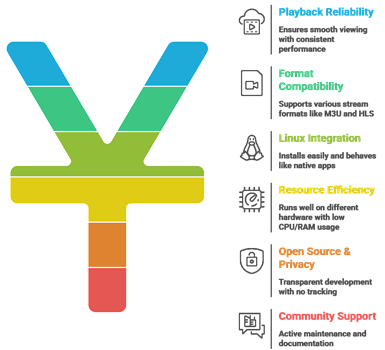
Our team aims to share everything you need to know about our evaluation approach, built on experience and accuracy. It is important to explain how we assessed players according to real performance data, Linux compatibility standards, and user-centric expectations. This method is the best way to improve user satisfaction, ensure reliability, and deliver results that are trustworthy and current.
- Playback Reliability: We selected players based on stream reliability, buffering control, and consistent performance to ensure smooth viewing experiences on Linux.
- Format Compatibility: Our team evaluated M3U support, EPG handling, codec breadth, and compatibility with HLS and MPEG-TS streams.
- Linux Integration: We shortlisted players that install cleanly via official repos, Flatpak, or AppImage and behave like native Linux apps.
- Resource Efficiency: Pricing was assessed for CPU and RAM usage to ensure players run well on a range of Linux hardware.
- Open Source & Privacy: We considered open-source availability, transparent development, and absence of tracking or risky add-ons.
- Community Support: We evaluated active GitHub maintenance, issue response speed, and community documentation quality.
How to Install an IPTV Player on Linux?
Install IPTV players through your distro’s package manager, Flatpak, Snap, or an AppImage. For Ubuntu/Mint/Debian, start with apt for stable builds or Flatpak for newer versions. Always download from official repos or verified publishers, then enable codecs (FFmpeg) if your distro ships minimal multimedia support.
- APT method: Use “sudo apt install” for packaged options like VLC, then keep updates via your normal system upgrades.
- Flatpak method: Install Flatpak and add Flathub to access newer IPTV apps across most Linux distros.
- Snap method: Use Snap for sandboxed installs, but verify permissions and file access needs.
- AppImage method: Download, chmod +x, run; ideal when no repo package exists for your distro.
- Codec setup: Install FFmpeg/GStreamer plugins to improve playback compatibility for IPTV streams and formats.
How to Load an M3U Playlist in a Linux IPTV Player?
Most Linux IPTV players accept an M3U URL or local M3U file. Copy the playlist link from your provider, then use “Open Network Stream” or “Add Playlist” in the app. For better navigation, add an EPG XMLTV link too. Test a few channels to confirm buffering and format support.
- Network stream: Paste the M3U URL into “Open Network Stream” or “Add URL” to load channels instantly.
- Local file: Import a downloaded .m3u/.m3u8 file via the app’s playlist or media library menu.
- EPG addition: Add XMLTV EPG URL in settings to display program guides and schedules cleanly.
- Troubleshooting: If channels fail, verify URL expiry, user-agent needs, and confirm HLS/MPEG-TS support.
Best IPTV Players for Linux Mint, Ubuntu, and Debian?
Top choices on Mint/Ubuntu/Debian include VLC for reliability, Kodi for a full media-center experience, and IPTVnator for a simple M3U+EPG interface. Hypnotix is popular on Linux Mint for IPTV browsing. Prioritize stable HLS playback, quick channel switching, and easy playlist management across updates.
- VLC: Great for quick streaming, strong codec support, and dependable playback across most IPTV formats.
- Kodi: Best if you want EPG-style browsing and add-ons, though setup takes more time.
- IPTVnator: Clean UI focused on M3U and EPG, available via Flatpak on many distros.
- Hypnotix (Mint): Easy channel browsing and playlist management, especially convenient for Linux Mint users.
Open-Source vs Closed-Source IPTV Players for Linux
Open-source IPTV players are generally safer to audit, easier to update via repos, and less likely to include tracking. Closed-source apps may offer slicker UIs or features but require more trust and can disappear or change terms. Prefer transparent apps and avoid players bundled with questionable “free IPTV” sources.
- Transparency: Open-source code can be reviewed, reducing risk of hidden tracking, ads, or credential harvesting.
- Updates: Open-source often updates quickly through distro repos or Flatpak, improving security and stability.
- Privacy: Prefer apps with clear data practices; avoid those requesting unnecessary permissions or background services.
- Legal note: Use legitimate IPTV subscriptions and respect broadcasting and copyright rules when streaming content.
Verdict
In this review, you got acquainted with some of the best IPTV players for Linux that deliver robust performance and reliable playlist handling. All of them have advantages and considerations. To help you take the final call, I have created this verdict.
- VLC Media Player: For Linux users who want a cost-effective, reliable, and powerful option, VLC is a superior choice. I value its broad codec support, quick playlist loading, and practical network streaming controls that help resolve issues like buffering or audio sync without extra add-ons.
- Kodi: Kodi is a top choice when you want a comprehensive, customizable living-room experience. Its library-style interface and add-on ecosystem can be impressive, but it needs more setup and occasional maintenance, so it fits users who prefer deeper control over simplicity.
- IPTVnator: IPTVnator is ideal if you are deciding on a user-friendly IPTV-first app. I recommend it for clean M3U/EPG handling and a focused workflow, though it is less robust than Kodi for media management and less flexible than VLC for troubleshooting.
FAQs
Which is the best free IPTV player for Linux?
For most Linux users, VLC is the best free IPTV player: it’s lightweight, stable, and plays most IPTV streams without extra plugins. If you want a TV-style interface, Kodi is also free and highly customizable. For simple M3U playback, IPTVnator is an easy open-source option.
Can I use VLC as an IPTV player on Linux?
Yes. VLC works well as an IPTV player on Linux. Open Media → Open Network Stream to paste a stream URL, or Media → Open File to load an M3U/M3U8 playlist. VLC is reliable for live channels, supports many codecs, and is widely available via Linux repositories.
Do Linux IPTV players support M3U and M3U8 playlists?
Most Linux IPTV players support M3U and M3U8 playlists, including VLC, Kodi (with IPTV Simple Client), and apps like IPTVnator. M3U typically lists channels and stream links; M3U8 is often used for HLS streams. If playback fails, confirm URLs, format, and required headers.
Is Kodi a good IPTV player for Linux?
Kodi is a strong IPTV option on Linux if you want a full media-center experience. With the IPTV Simple Client add-on, it can load M3U/M3U8 playlists and EPG data, organize channels, and provide a TV guide view. It’s more setup than VLC, but better for daily use.
How do I add an EPG (Electronic Program Guide) in a Linux IPTV player?
To add EPG, you usually need an XMLTV URL/file from your IPTV provider. In Kodi, enable PVR IPTV Simple Client, then set the M3U playlist and the XMLTV EPG path, and refresh. Some apps support EPG auto-matching; otherwise, adjust channel IDs in the playlist.