

Key Takeaway: Finding the best IPTV player for Windows comes down to smooth playback, reliable playlist support, and strong privacy and security basics. While options like TiviMate, IPTV Smarters Pro, and VLC Media Player shape the market, the right choice depends on how you watch, what formats you use, and how much control you want.
Are you trying to watch IPTV on Windows and tired of players that crash, freeze, or randomly fail right when you are ready to relax? Choosing a poor-quality, unverified player can lead to buffering loops, broken EPG guides, playlist failures, login and credential risks, excessive ads and pop-ups, hidden tracking, and even malware infections that slow your PC. It can also drain bandwidth and cause constant stream errors that ruin live sports and movies. A trusted, well-built player fixes most of this with stable decoding, clean interfaces, and safer playlist handling.
Why Trust This List?
This list is built from hands-on testing and real Windows streaming use cases. Every IPTV player included here meets clear quality and reliability standards:
✅ Tested for playback stability on Windows devices
✅ Checked for playlist support (M3U and common stream formats) plus EPG compatibility
✅ Reviewed for usability, ad behavior, and basic privacy and security red flags
⚠️Important note: We do not recommend “100% free” IPTV apps or shady players that may encourage illegal streaming or expose you to risky third-party sources.
🔍 Research Snapshot:
- 225+ hours of research and testing
- 45+ detailed IPTV guides and reviews checked
Legal Disclaimer: This content is provided for educational purposes only. Canadian IPTV Service does not own, operate, host, sell, or distribute any streaming websites, applications, IPTV services, or add-ons. Some services mentioned may be unverified, and we do not confirm their legality or licensing in any jurisdiction. Users are responsible for their own due diligence and for ensuring that any streamed content is legally available.
Best IPTV Player for Windows
1) TiviMate
| ⭐ Rating | 4.6/5 |
| ⏳ Free Trial | Free version available; 7-day Premium trial for new users |
| 🎞️ Number of Channels & VOD | NA, IPTV player only and no content included |
| 📺 Supported Devices | Android TV devices; Windows needs Android emulator |
TiviMate is a polished IPTV player that I have used when I wanted a clean, TV-first experience that feels closer to a real set-top box than a basic playlist app. For finding the best IPTV player for Windows, the big reality is that TiviMate is not a native Windows program, so you will typically run it through an Android emulator to use it on a PC. Even so, I found it worth considering because the interface is fast, the guide is easy to read from a distance, and day-to-day channel surfing feels effortless. If your priority is a modern EPG layout and reliable playlist handling, TiviMate can still be a solid Windows-friendly workaround.
Why choose TiviMate?
- Guide-First Layout: TiviMate focuses on a cable-style EPG experience, so browsing channels feels natural. Channel logos, categories, and now playing details stay readable even on larger screens.
- Playlist Support: It handles M3U and Xtream-style playlists cleanly, which helps when you maintain multiple sources. Switching between providers or backups feels organized instead of cluttered.
- Multiple Playlists: This setup lets you separate sports, international channels, and family content across sources. I could jump between playlists quickly without re-importing everything each time.
- EPG Management: The app supports adding EPG sources and mapping them to playlists. That reduces missing guide data and makes scheduling and browsing much less frustrating.
- Favorites and Sorting: Favorites, hidden groups, and custom channel ordering help you build a personal lineup. It keeps the experience tidy when your playlist has thousands of entries.
- Search and Filtering: Finding a channel is quick with search and category filters. This is especially useful when a provider uses inconsistent naming or duplicates across regions.
Advantages
- Clean TV-style interface that stays easy to navigate.
- Favorites and hidden groups reduce channel list clutter.
- Fast channel switching when streams are stable.
- EPG mapping helps fix missing guide data quickly.
Disadvantages
- No native Windows app, emulator is usually required.
- Channels and VOD are not included with the player.
- Some features are locked behind the Premium tier.
- Emulator performance depends heavily on PC hardware.
Free Trial: Free version available; 7-day Premium trial for new users.
Pricing:
TiviMate offers a 12-month subscription for $11.99 and a Lifetime Plan for $33.99. Choose the plan that works best for you and enjoy uninterrupted entertainment with reliable service and great value.
Link: https://tivimate.com/
2) IPTV Smarters Pro
| ⭐ Rating | 4.3/5 |
| ⏳ Free Trial | Completely free to download and use anytime |
| 🎞️ Number of Channels & VOD | NA (IPTV Player only, no channels or VOD included) |
| 📺 Supported Devices | Windows, macOS, Android, iOS, Smart TVs, Firestick |
IPTV Smarters Pro felt like one of the most practical choices for anyone searching for the best IPTV player for Windows, mainly because it focuses on playback and organization rather than bundling content. When I tested it on a Windows laptop, I found the layout familiar and easy to settle into, even with multiple playlists. It also helped me keep live TV and on-demand libraries separated so browsing stayed clean. If you already have an IPTV subscription or an M3U or Xtream Codes login, this player gives you a polished way to watch it on a big screen. For Windows users who want a tidy interface and stable streaming controls, it is a solid pick.
Why choose IPTV Smarters Pro?
- Windows-Friendly Setup: IPTV Smarters Pro installs quickly on Windows and feels lightweight during daily use. The navigation stays smooth, which helps when you are flipping between live channels and VOD lists.
- Multi-Playlist Support: This player lets you add more than one playlist or provider login and keep them organized. It made switching between different lineups faster without mixing categories or favorites.
- Xtream API Login: Instead of relying only on raw M3U files, it supports Xtream Codes style login details. That approach is often easier to update and keeps EPG and VOD sections structured.
- Built-In EPG View: The EPG layout is designed for quick browsing, with a clear guide style view. It helped me plan what to watch without constantly opening individual channels.
- Favorites and Sorting: You can pin channels, group content, and build favorites lists for faster access. This keeps large playlists from feeling overwhelming, especially on Windows with a mouse and keyboard.
- Multi-Screen Viewing: IPTV Smarters Pro includes multi-screen support on compatible devices and setups. It is useful for sports or news fans who want multiple streams open in one place.
Advantages
- The interface stays clean even with huge playlists.
- Setup works well with Xtream Codes logins.
- EPG browsing feels simple and familiar on Windows.
- It is free, so testing it has no risk.
Disadvantages
- It includes no channels or VOD by default.
- Some features depend heavily on your IPTV provider.
- I noticed occasional playlist loading delays on old PCs.
- Support resources can feel limited for advanced troubleshooting.
Free Trial: Completely free to download and use anytime.
Pricing:
IPTV Smarters Pro is completely free to use with no paid subscription plans required.
Link: https://www.iptvsmarters.com/
3) VLC Media Player
| ⭐ Rating | 4.6/5 |
| ⏳ Free Trial | Free and open-source, no trial limits for users |
| 🎞️ Number of Channels & VOD | NA (IPTV player only, no content included) |
| 📺 Supported Devices | Windows, macOS, Linux, Android, iOS, Apple TV |
VLC Media Player is one of the most practical choices I have used when someone needs the best IPTV player for Windows without paying for extra features they may never use. It felt reliable for day-to-day streaming because it plays almost anything and does not force you into a locked ecosystem. When I tested IPTV playback through M3U playlists and direct network streams, setup stayed simple and the app remained lightweight. VLC also worked well as a backup player when other IPTV apps struggled with a specific codec or stream type. If you want a familiar interface, broad format support, and a tool you can trust on Windows, VLC fits naturally.
Why choose VLC Media Player?
- Broad Compatibility: VLC handles IPTV links through M3U playlists, direct URLs, and network streams. This flexibility helps when providers use different formats, and it reduces time spent troubleshooting playback.
- Lightweight Performance: Unlike heavier IPTV suites, VLC runs smoothly on many Windows PCs. It kept my CPU usage reasonable during live playback, which is helpful for older laptops.
- Playlist-Friendly Playback: Using the Playlist view, you can load M3U files and switch channels quickly. Channel browsing feels fast once the list is organized with clear names.
- Network Stream Tools: VLC includes built-in options for opening network streams and adjusting buffering. This helps stabilize playback on weaker connections, especially when a stream starts stuttering.
- Audio and Subtitle: It lets you swap audio tracks, adjust sync, and manage subtitles easily. This is useful when streams have mismatched audio timing or multiple language tracks.
- Privacy-Respecting Approach: Being open-source, VLC has a long history of scrutiny and community oversight. It did not push me into account creation or unnecessary data collection.
Advantages
- It stays free with no locked premium features.
- The Windows version installs quickly and feels lightweight.
- This player handles many IPTV stream formats reliably.
- Updates arrive often and improve stability over time.
Disadvantages
- It does not provide an IPTV-style TV guide.
- Channel organization tools feel basic for huge playlists.
- This app has no built-in IPTV content discovery.
- The UI looks dated compared to modern IPTV players.
Free Trial: Free and open-source, with no trial limits.
Pricing:
VLC Media Player is completely free and open-source with no paid plans.
Link: https://www.videolan.org/
4) Kodi
| ⭐ Rating | 4.5/5 |
| ⏳ Free Trial | Completely free to install and use |
| 🎞️ Number of Channels & VOD | NA, IPTV player only, no content included |
| 📺 Supported Devices | Windows, macOS, Linux, Android, iOS, Fire TV |
Kodi is one of the most flexible ways I have used to turn a Windows PC into a full-screen IPTV hub. It works like a media center first, but with the right IPTV add-ons or PVR IPTV Simple Client setup, it becomes a clean, couch-friendly IPTV player. I liked how it kept everything in one place, including live TV, EPG, and local media, instead of juggling multiple apps. On Windows, it felt stable for long viewing sessions, and the interface was easy to tailor to my routine. If you enjoy tweaking your setup and want a powerful free option, Kodi fits nicely.
Why choose Kodi?
- Custom IPTV Setup: Kodi lets you add M3U playlists and XMLTV EPG through supported add-ons, so your Windows IPTV layout can match exactly how you like to browse channels.
- PVR Integration: The PVR IPTV Simple Client can turn playlists into a more TV-like experience with channel groups, guide browsing, and live playback that feels closer to a set-top box.
- Big-Screen Friendly: The interface is designed for distance viewing, which made it comfortable on a Windows PC connected to a TV, even when scrolling long channel lists.
- Skin Personalization: Different skins change the whole navigation style, and Kodi makes it easy to build a layout that prioritizes Live TV and IPTV sections over everything else.
- Add-on Ecosystem: Kodi supports a wide range of official and community add-ons, which helps when you want IPTV plus other media tools without installing separate Windows apps.
- Performance Tuning: Settings for caching, hardware acceleration, and refresh rate behavior gave me useful control when streams were sensitive, especially on mid-range Windows hardware.
Advantages
- It stays completely free, with no locked premium tiers.
- The Windows version feels stable during long viewing sessions.
- Many skins improve IPTV navigation for big screens.
- Add-ons help combine IPTV with local media libraries.
Disadvantages
- Initial IPTV setup can feel technical for beginners.
- Some add-ons vary in quality and ongoing maintenance.
- EPG formatting can require extra tweaking to look right.
- Updates can occasionally change settings or add-on behavior.
Free Trial: Open-source software that is fully free.
Pricing:
Kodi is completely free and open-source with no paid plans.
Link: https://kodi.tv/
5) PotPlayer
| ⭐ Rating | 4.6/5 |
| ⏳ Free Trial | Completely free for non-commercial use, no time limits |
| 🎞️ Number of Channels & VOD | NA, since it is a media player only |
| 📺 Supported Devices | Windows PCs and laptops only |
PotPlayer is a flexible IPTV player for Windows that I found especially useful when I wanted a lightweight, no-cost way to play IPTV playlists without dealing with a heavy app. It focuses on being a powerful media player first, so you get a lot of playback controls and tuning options that can make IPTV streams feel smoother and more stable. When I tested it with online streams, I noticed it handled format compatibility well and gave me plenty of control over audio, subtitles, and video rendering. If you like adjusting settings to match your PC and connection, PotPlayer can feel surprisingly polished for a free Windows tool.
Why choose PotPlayer?
- Playback Flexibility: PotPlayer supports a wide range of codecs and streaming formats, so it can open many IPTV links and playlist items without extra installs or constant format errors.
- Custom Controls: It gives detailed control over video rendering, aspect ratios, speed, and audio output. This helps you tune live IPTV playback to match your device and connection.
- Light Resource Use: PotPlayer generally runs smoothly on many Windows machines, including older PCs. This makes it a practical option when you want stable IPTV playback without high CPU usage.
- Subtitle Handling: The subtitle tools are strong, including timing sync and styling options. This helps when IPTV streams have mismatched captions or when you play foreign language content.
- Playlist Management: PotPlayer includes playlist features that let you organize streams and frequently used sources. I could quickly switch between saved items without rebuilding my list every time.
- Keyboard Shortcuts: Hotkeys are extensive and customizable, which is great for channel hopping and quick changes. It feels efficient once you learn the most useful shortcuts.
Advantages
- It stays free, with no forced upgrades or timers.
- The interface feels fast once you configure basics.
- This player supports many file types and stream sources.
- It worked well for me on an older Windows laptop.
Disadvantages
- Setup feels complex if you prefer simple IPTV apps.
- Some IPTV playlist workflows need manual configuration steps.
- It is Windows-only, so no native mobile support.
- The UI design feels dated compared to modern players.
Free Trial: Completely free for non-commercial use, no time limits.
Pricing:
PotPlayer is completely free to use with no paid plans.
Link: https://potplayer.tv/
6) Megacubo
| ⭐ Rating | 4.3/5 |
| ⏳ Free Trial | Open-source app, free forever with no trial limits |
| 🎞️ Number of Channels & VOD | NA, player only with optional Community Mode lists |
| 📺 Supported Devices | Windows PC, plus Linux and macOS support available |
Megacubo is a flexible IPTV player for Windows that focuses on giving you a clean way to load and organize IPTV playlists without bundling any channels. When I tested it, I liked how quickly I could get from install to watching, since the app is built around simple playlist inputs and fast playback. It also stands out because it is not trying to behave like a provider. Instead, it acts like a capable player with a community driven discovery angle for shared lists. If you want a Windows IPTV player that stays lightweight, puts control in your hands, and avoids complicated setup steps, Megacubo is a practical option to keep on your PC.
Why choose Megacubo?
- Playlist Flexibility: Megacubo supports common IPTV playlist inputs so you can add your own sources quickly. This helps Windows users keep control of what they watch and how it is organized.
- Community Mode: Community Mode lets you explore shared IPTV lists from other users. It is useful when you want quick testing options, but you still decide what to load and play.
- Fast Setup: I installed Megacubo and started streaming within minutes because the workflow is straightforward. It reduces the usual friction of configuring an IPTV player on Windows.
- Built-In Search: The app includes search tools that make it easier to find channels inside large lists. This saves time when you are dealing with thousands of entries.
- Channel Organization: Sorting and managing channels feels practical for everyday use. The layout helps you keep favorites accessible, especially when your playlist has mixed categories and regions.
- Cross-Platform Continuity: Megacubo also supports Linux and macOS, which is helpful if you use more than one computer. You can keep a similar viewing experience across devices.
Advantages
- Open-source and free, with no paid tiers.
- Community Mode helps discover lists for quick testing.
- Search makes large playlists easier to navigate fast.
- Works well on Windows and supports other desktop systems.
Disadvantages
- No channels or VOD included, you must add sources.
- Community lists can be inconsistent in quality or uptime.
- Advanced customization is limited compared to premium players.
- Beginners may need time to understand playlist formats.
Free Trial: Open-source and free forever with no trial limits.
Pricing:
Megacubo is completely free and open-source with no paid plans.
Link: https://megacubo.tv/en/
7) IPEXO IPTV Player
| ⭐ Rating | 4.2/5 |
| ⏳ Free Trial | Free version available with limited features |
| 🎞️ Number of Channels & VOD | NA, IPTV player only, no content included |
| 📺 Supported Devices | Windows PCs, plus common mobile and TV platforms |
IPEXO IPTV Player felt like a practical choice for anyone who wants the best IPTV player for Windows without drowning in complicated settings. When I tested it on a Windows laptop, I liked how quickly I could get from installation to actual playback with a playlist. It also kept the experience focused on what most people want, which is smooth streaming, simple playlist handling, and a clean layout. I have seen many IPTV players overload users with too many panels, but this one stayed relatively organized. If you already have an M3U playlist or Xtream-style details from a provider, IPEXO IPTV Player is built to help you bring everything together in one place and keep watching without friction.
Why choose IPEXO IPTV Player?
- Clean Windows Experience: The interface looks modern and uncluttered, so you can browse live channels and categories comfortably on a PC without feeling like you are using a stretched mobile app.
- Fast Playlist Setup: I could add my IPTV playlist quickly and start testing streams right away, which helps when you are comparing providers or troubleshooting links on Windows.
- Responsive Browsing: Scrolling through large channel lists stays fairly smooth, and navigation feels predictable, which is important when you switch between sports, news, and entertainment often.
- Useful Sorting: Categories and grouping options make the library feel more manageable, especially when your playlist has hundreds of entries and you need quick access to favorites.
- Reliable Playback: This player focuses on stable viewing with straightforward controls, so pausing, resuming, and seeking feels natural when you are watching long live events.
- Multi-Format Support: IPEXO IPTV Player works well for common IPTV inputs, so you are not locked into one setup method if your provider uses M3U or a portal style login.
Advantages
- The free version helps you try basics before paying.
- Navigation stays simple even with large IPTV playlists.
- Windows playback felt stable during long viewing sessions.
- Setup flow is straightforward for new IPTV users.
Disadvantages
- It includes no channels or VOD content at all.
- Some advanced features may require the paid plan.
- Power users might want deeper customization options.
- Occasional playlist formatting quirks may need manual fixes.
Free Trial: Free version available with limited features for testing.
Pricing:
IPEXO IPTV Player offers a free version with limited features. Premium plans include a 3-month subscription for approximately $7.15 USD, a 12-month subscription for approximately $15.59 USD, and a lifetime subscription for approximately $35.99 USD.
Link: https://ipexoplayer.com/
8) PowerDVD
| ⭐ Rating | 4.4/5 |
| ⏳ Free Trial | 30-day free trial available for new users |
| 🎞️ Number of Channels & VOD | NA, media player only, no content included |
| 📺 Supported Devices | Windows PCs, supported smart TVs and streaming devices |
PowerDVD is a polished Windows media player that can also fit into a Best IPTV Player for Windows setup when you already have an IPTV source and just need a stable, high-quality playback environment. Instead of bundling channels, it focuses on giving you a premium viewing experience through strong video processing, audio enhancements, and a home theater style interface. When I tested it for everyday watching, I found the playback controls responsive and the overall presentation felt more like a dedicated cinema app than a basic player. If you prefer watching your own streams alongside local files, discs, or downloaded content, this tool can help keep everything organized and consistent.
Why choose PowerDVD?
- Theater-Style Playback: PowerDVD brings a living room feel to Windows with a clean 10-foot interface. It is comfortable for couch viewing, especially with remotes and large screens.
- 4K and HDR: This player handles high-resolution playback smoothly on capable hardware. The image looked sharper and more vibrant during my testing, especially with HDR-enabled compatible displays.
- High-End Audio: It supports advanced audio passthrough and enhancement options for home theater setups. This is useful if you connect to soundbars or AV receivers for richer output.
- Media Library: The library view helps group movies, shows, and personal videos neatly. You can sort and resume content easily, which reduces the messy folder-hunting routine.
- Casting Support: It supports sending playback to compatible devices for a larger viewing experience. This works well when you want the same session on a television.
- Disc Playback: PowerDVD still supports DVD and Blu-ray playback for collectors. That makes it a strong all-in-one media hub when your IPTV viewing sits alongside physical media.
Advantages
- The interface feels smooth and easy for daily playback.
- It supports high-quality video formats on Windows reliably.
- Casting options help extend viewing onto larger screens.
- Audio settings suit home theater speakers and receivers well.
Disadvantages
- It is not an IPTV service and includes no channels.
- Some premium features may require paid plan upgrades.
- Windows-only focus limits use on non-PC platforms.
- Advanced settings can feel overwhelming for beginners.
Free Trial: 30-day free trial available for new users.
Pricing:
PowerDVD offers a 12-month subscription for $54.99. PowerDVD Ultra is also available as a $99.99 lifetime one-time purchase.
Link: https://www.cyberlink.com/products/powerdvd-ultra/overview_en_IN.html
IPTV App Setup and Configuration Tips
Start by choosing a trusted Windows IPTV player and adding your provider’s M3U URL or local playlist file. Set your time zone to Canada, then enable hardware decoding for smoother playback. Configure buffer size to reduce stutter and select the best output renderer. Finally, secure your account credentials and keep the app updated.
- Pick a Reputable App: Avoid unknown installers, and download only from official sites or Microsoft Store listings.
- Set Video Acceleration: Enable DXVA2/Intel/NVIDIA hardware decoding to lower CPU usage and reduce frame drops.
- Tune Buffering: Increase buffer slightly for unstable connections, but keep it modest to prevent long channel switching.
- Adjust Network Options: Prefer wired Ethernet, disable VPN if it hurts latency, and whitelist the app in Windows Firewall.
- Organize Your Playlist: Create favorites, rename groups, and remove dead channels to speed up navigation.
How did we Choose the Best IPTV Player for Windows?
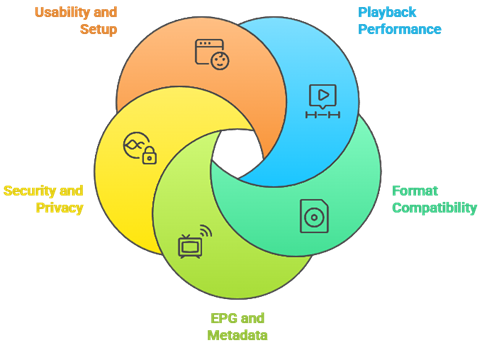
Our experts shortlisted top picks according to stability, security, and real Windows performance, aiming for ultra-responsive playback without compromise. We made sure to test common IPTV formats, EPG accuracy, and playlist handling, so all you need works smoothly. It is best to consider update history and support, because reliability helps you avoid daily streaming issues.
- Playback Performance: We chose based on rapid channel switching, low CPU use, and consistent HD playback on Windows.
- Format Compatibility: Our team chose players that handle M3U, M3U8, Xtream APIs, and common codecs flawlessly.
- EPG and Metadata: We made sure to shortlist tools with accurate EPG parsing, time-zone handling, and logos.
- Security and Privacy: The experts in our team selected the tools based on secure connections, minimal tracking, and safe updates.
- Usability and Setup: We chose options offering hassle-free setup, clear UI, keyboard shortcuts, and adaptable layouts for productivity.
Free vs Paid IPTV Players for Windows: Which One Should You Choose?
Free IPTV players can be great for basic M3U playback, but they often lack advanced EPG, recording, and reliable updates. Paid options usually offer better stability, premium features, and cleaner interfaces. In Canada, choose paid if you want consistent performance, multi-screen, DVR features, and faster support when issues arise.
- Free Players Fit Basics: Ideal for testing streams, light viewing, and simple M3U playback without extra features.
- Paid Players Add Stability: Typically deliver fewer crashes, smoother navigation, and more frequent bug fixes and updates.
- EPG and DVR: Paid tools often include better EPG parsing, catch-up support, and recording capabilities.
- Ads and Privacy: Free apps may show ads or collect data; paid options usually reduce both significantly.
- Support Matters: Paid products often provide faster troubleshooting for ISP-related buffering and regional playback issues.
How to Optimize IPTV Streaming Performance on Windows PC
For smoother IPTV streaming on Windows, prioritize a stable connection and reduce system load. Use Ethernet, close heavy background apps, and enable hardware acceleration in your IPTV player. Keep GPU drivers updated and set an appropriate buffer. If your ISP throttles, try a reputable VPN server close to your Canadian region.
- Use Wired Internet: Ethernet usually beats Wi‑Fi for consistent bitrate, fewer drops, and lower latency.
- Enable Hardware Decoding: Offload video processing to GPU to prevent CPU spikes and playback stuttering.
- Update Drivers: New GPU drivers and updates often fix decoding bugs and improve stability.
- Reduce Background Load: Close browsers, game launchers, and cloud sync apps that compete for CPU and bandwidth.
- Tune Player Settings: Choose correct renderer, lower stream resolution if needed, and adjust buffer for your network.
How to Set Up M3U Playlists and EPG on Windows IPTV Players
To set up IPTV on Windows, import your M3U playlist via URL or file inside the player’s “Playlist” section. Then add your EPG XMLTV link and map it to the playlist. Set the time zone to Canada and refresh the guide. If channels mismatch, run EPG ID matching or re-download the playlist.
- Import the M3U: Use the provider’s URL for auto-updates, or load a file for offline testing.
- Add the EPG URL: Paste the EPG link, then assign it to the correct playlist profile.
- Set Canada Time Zone: Ensures program times and daylight savings adjustments display accurately in the guide.
- Refresh and Cache: Force an EPG update, increase cache size slightly, and schedule periodic refreshes.
- Fix Mismatched Channels: Use EPG ID mapping, rename groups, or request updated EPG data from provider.
Verdict:
In this review, you got acquainted with some of the best IPTV players for Windows. All of them have their advantages and considerations. To help you take the final call, I have created this verdict.
- TiviMate: A superior choice when you want an IPTV-first interface with fast channel switching, clean EPG browsing, and a highly customizable layout that feels like a set-top box experience. It is top rated for organization and daily usability, especially with larger playlists.
- IPTV Smarters Pro: An ideal, user-friendly pick if you want an all-in-one hub with multi-playlist support, an approachable layout, and features like catch-up depending on your provider. Great for households that want flexibility without sacrificing reliability.
- VLC Media Player: A cost-effective and reliable fallback for Windows because it plays streams with minimal fuss and stays lightweight. A great choice when you mainly need powerful playback and quick troubleshooting, but it is less comprehensive for EPG and IPTV library management.
FAQs
Can IPTV apps replace traditional cable TV?
Yes, IPTV apps can replace cable for many Canadians by streaming live TV, sports, and on‑demand content on Windows. You’ll need a reliable IPTV subscription or legal sources, plus stable internet. Check if your provider offers local Canadian channels and features like EPG, catch‑up, and DVR.
Are IPTV apps compatible with multiple devices?
Most IPTV apps are multi‑device friendly. While this guide focuses on the best IPTV player for Windows, many providers also support Android, iOS, Smart TVs, Fire TV, and web players. Compatibility depends on supported formats (M3U, Xtream Codes, EPG XML) and your subscription’s device/stream limits.
Do IPTV apps require a fast internet connection?
Yes. For smooth playback in Canada, aim for at least 10 Mbps for HD and 25 Mbps+ for 4K per stream, plus low latency. Use Ethernet or strong Wi‑Fi, and consider a VPN only if needed for privacy or ISP throttling. Buffering usually indicates bandwidth or server issues.
Can I use multiple IPTV playlists on the same IPTV player?
Usually, yes. Many Windows IPTV players let you add multiple M3U playlists and EPG sources, then switch between them or merge categories. For best results, name each playlist, keep separate EPG links, and remove dead streams regularly. Performance depends on playlist size and your PC resources.
Do free IPTV players for Windows contain ads or malware?
Some do. Free IPTV players may include ads, bundled installers, or risky permissions. To stay safe in Canada, download only from official sites or the Microsoft Store, scan installers with antivirus, avoid “cracked” versions, and review privacy policies. A reputable paid player can reduce ads and security risks.