
A Smart TV setup succeeds when the application, login format and television platform are checked before any credentials are entered. Samsung Tizen, LG webOS, Google TV and Fire TV use different stores and permission models, so the correct process depends on the operating system shown in the television settings—not simply the brand printed on the frame.
This guide explains a cautious setup path for authorised playlists and services. It covers app-store verification, M3U and portal-style logins, guide-data refreshes, network checks and sensible security steps without assuming that every television supports the same player.
Content and licensing notice: This setup guide is for lawful sources only. Use a playlist, account or media server that you own or are authorised to access. A player does not grant rights to programming, and app availability, licensing and device support should be confirmed before payment.
Smart TV Setup Decision Guide
Start in Settings > About and record the television model, operating system and software version. Then search the built-in store for the player’s exact developer name. If no maintained app exists, an external device receiving regular security updates is safer and easier to troubleshoot than a download from an unknown website.
- Tizen or webOS: use a current store-listed player and follow its documented activation method.
- Google TV or Android TV: verify the developer listing, requested permissions and update history.
- Fire TV: search the Amazon store first; use the verified developer source only when the app is unavailable there.
- Older television: prefer a supported external box instead of weakening the television’s security settings.
What You Need Before You Start
Gather these essentials first so the setup runs start to finish without hunting for details midway. Having everything ready is the difference between a five-minute install and a frustrating stop-start session that leaves you guessing.
- An active IPTV subscription: A paid plan from a reliable provider, ideally one with a free trial so you can test playback before committing.
- Your login details: Either an M3U playlist URL or Xtream Codes (server URL, username, and password), sent by your provider after signup.
- A stable internet connection: At least 15-25 Mbps for HD; wired Ethernet or strong 5 GHz Wi-Fi keeps live channels smooth.
- A compatible IPTV app: Downloaded from your TV’s app store, or sideloaded on the platforms that allow it.
- The EPG URL (optional): If your provider supplies a separate guide link, keep it handy to load the programme guide.
- Your remote and account email: For entering details and confirming any activation step that appears during setup.
How to Set Up IPTV on a Smart TV, Step by Step
The overall process is the same on every Smart TV, even though the app store and app names differ by brand. Follow these steps once and the brand-specific sections below will make sense no matter which television you own.
- 1. Connect to the internet: Join your TV to Wi-Fi or, better, plug in Ethernet for the steadiest possible live playback.
- 2. Install an IPTV app: Open your TV’s app store and download a supported player such as IPTV Smarters, Set IPTV, or Smart IPTV.
- 3. Open the app and choose “Add playlist”: Select login by Xtream Codes or M3U URL, depending on what your provider gave you.
- 4. Enter your details carefully: Type the server URL, username, and password exactly, with no extra spaces, then save.
- 5. Let the channels load: The app pulls your channel list and categories, so give it a moment on the very first load.
- 6. Add the EPG and test: Enable the programme guide, then play a channel to confirm smooth playback before settling in.
How to Set Up IPTV on a Samsung Smart TV (Tizen)
Samsung’s Tizen TVs do not allow sideloading, so you use an app from the Samsung Apps store. Smart IPTV (SIPTV), IPTV Smarters, and Set IPTV are the popular choices, and most use a small one-time activation fee tied to your TV’s MAC address rather than a monthly charge.
- Open the Samsung Apps store and search for an IPTV player such as Smart IPTV or IPTV Smarters Pro.
- Install and launch the app, then note the MAC address it displays, since some apps need it for activation.
- Upload your playlist through the app’s web portal using your MAC address and M3U URL, or add Xtream Codes directly in the app.
- Complete any activation: Apps like SIPTV give a short free trial, then ask for a small one-time payment to keep the playlist active.
- Reload and test: Restart the app so your channels appear, then play one to confirm smooth Tizen playback before settling in.
How to Set Up IPTV on an LG Smart TV (webOS)
LG’s webOS works much like Samsung’s Tizen, so the process feels familiar. Install a player from the LG Content Store, then load your playlist by MAC address or Xtream Codes. The same popular apps are available, and the steps are nearly identical.
- Open the LG Content Store and search for Smart IPTV, IPTV Smarters, or Set IPTV.
- Install and open the app, noting the MAC address on screen if the app requires it for activation.
- Add your playlist through the app’s web uploader using your MAC and M3U link, or enter Xtream Codes directly in the app.
- Handle activation: Use the trial window first, then pay the small one-time fee if the app asks for it.
- Restart and verify: Relaunch the app so your channels and categories populate, then test live playback.
How to Set Up IPTV on Android TV and Google TV
Android TV and Google TV are the most flexible platforms because they run full apps from the Google Play Store and allow sideloading. That makes them my top choice for IPTV, since powerful players like TiviMate are available and hardware decoding is easy to enable.
- Open Google Play and install a player such as TiviMate, IPTV Smarters Pro, or OTT Navigator.
- Launch the app and add a playlist, choosing either Xtream Codes or M3U URL login.
- Enter your provider details exactly, then let the channel list and categories finish downloading.
- Add the EPG URL if your provider supplies one, so the programme guide scheduled programmes your channels.
- Enable hardware decoding in settings for the smoothest playback, then test a live channel.
How to Set Up IPTV on Amazon Fire TV
Fire TV Sticks and Fire TV devices run a version of Android, so you get plenty of app choice plus sideloading through the Downloader app. That makes Fire TV one of the easiest and cheapest ways to add IPTV to any television with a spare HDMI port.
- Install from the Amazon Appstore: Search for IPTV Smarters Pro or a similar player and install it directly on the device.
- Or sideload with Downloader: Enable “Apps from Unknown Sources”, then use the Downloader app to install players not in the store.
- Open the app and add your playlist via Xtream Codes or M3U URL, entering every detail exactly as provided.
- Enable hardware decoding and clear the cache occasionally, since Fire TV sticks have limited memory to work with.
- Wire in if possible: An Ethernet adapter noticeably steadies playback on the cheaper Fire TV sticks.
How to Set Up IPTV on Roku
Roku is the most restrictive platform, because it does not allow standard IPTV player apps or sideloading. You have two practical routes: a Roku channel that accepts an M3U link, or screen mirroring from a phone or PC to the Roku.
- Try a Roku IPTV channel: Add an M3U-capable player from the Roku Channel Store, though the available options are limited.
- Enter your M3U URL in that channel if it supports one, since Roku rarely accepts Xtream Codes directly.
- Or mirror from a phone: Use screen mirroring from Android or a PC to cast an IPTV app to the Roku screen.
- Consider an external device: For full app support, a Firestick or Android box plugged into the same TV is far more capable.
- Test playback: Confirm the stream is stable, since mirrored playback depends on the source device and your Wi-Fi.
Best IPTV Apps for Smart TVs
The right app matters as much as the service. Some players are lighter, some handle the EPG better, and availability varies by platform. These are the ones I reach for most, and our full guide to the best IPTV apps for Smart TV compares them in more detail.
- TiviMate: The best experience on Android TV and Google TV, with a polished EPG and recording, though it is not available on Samsung or LG.
- IPTV Smarters Pro: Widely available across platforms, supports both Xtream and M3U, and stays beginner-friendly.
- Smart IPTV (SIPTV): A long-standing choice for Samsung and LG, loaded via MAC address and a web portal.
- Set IPTV: Another reliable Samsung and LG option with simple playlist uploading and activation.
- OTT Navigator: Highly customisable on Android-based TVs, with flexible decoding and layout options.
How to Load Your EPG (Program Guide)
A working electronic programme guide turns a raw channel list into a proper TV experience, showing what is on now and next. Most providers supply an EPG URL separately from your playlist, and adding it takes only a moment once you know where the setting lives.
- Get the EPG URL from your provider, usually an XMLTV link supplied separately from the M3U playlist.
- Open your player’s settings and find the EPG or “Program Guide” section.
- Paste the EPG URL or enable auto-download if the app pulls the guide from your playlist automatically.
- Set the correct time zone so listings line up with Canadian schedules instead of shifting several hours off.
- Refresh the guide if listings look wrong, since a manual refresh usually realigns the data.
Tips for Smooth Smart TV Streaming
A few small habits keep live channels crisp and stable on the big screen. These are the adjustments that separate a cable-like experience from a stuttering one, especially during the busy evening hours when networks get congested.
- Use Ethernet or 5 GHz Wi-Fi: A wired or strong signal is the single biggest factor in buffer-free live playback.
- Enable hardware decoding: Let the TV or device chip handle video so playback stays smooth, particularly at 4K.
- scheduled programme quality to your connection: Drop to HD if 4K stutters, since a stable HD picture beats a freezing 4K one.
- Keep the app and firmware updated: Updates fix playback bugs and keep video codecs supported over time.
- Restart the TV weekly: A quick reboot clears the small slowdowns that build up with constant use.
- Close background apps: Free memory on the TV so the player has the resources it needs for live streams.
Common Smart TV IPTV Problems and Fixes
Most Smart TV IPTV issues come down to the login, the connection, or the app itself. Work through these one at a time and you will clear the vast majority of problems without needing to contact support at all.
- Channels will not load: Recheck your M3U or Xtream details for typos, and confirm your subscription is still active.
- Buffering or freezing: Switch to Ethernet or 5 GHz, lower the quality, and raise the buffer size in the player.
- App keeps crashing: Update or reinstall the app, and clear its cache to remove corrupted data.
- No EPG or wrong listings: Re-add the EPG URL and set the correct time zone, then refresh the guide.
- Playlist expired message: Some Samsung and LG apps need the small one-time activation fee paid after the trial ends.
- Audio but no video: Switch decoder mode between hardware and software for that channel to fix the mismatch.
When Network Routing Needs Attention on a Smart TV
A VPN is optional, not mandatory, but it has real uses on a Smart TV. It hides streaming traffic from ISP throttling and adds a layer of privacy. The catch is that many Samsung and LG TVs cannot run VPN apps directly, so you protect the whole home at the router instead of on the television itself.
- Beats throttling: If your ISP slows streaming traffic, a VPN can restore smooth playback on the TV.
- Adds privacy: It hides what you stream from your ISP, which many viewers simply prefer.
- Router-level for Tizen and webOS: Since Samsung and LG rarely run VPN apps, install it on the router to cover the TV.
- Native apps on Android and Fire TV: These platforms run VPN apps directly if you prefer per-device control.
- Pick a fast, nearby server: A slow VPN adds buffering, so choose a quick server close to your location.
Smart TV App vs External Streaming Device: Which Is Better?
If your Smart TV feels slow or its app choice is limited, a cheap external device is often the better route. Here is how the two approaches compare, so you can decide whether to stream natively on the TV or add a Firestick or Android box to the setup.
- Native TV app: No extra hardware or cables, but Samsung, LG, and Roku all limit which IPTV apps you can install.
- Firestick or Android box: Adds full app support, sideloading, and hardware decoding for noticeably smoother playback.
- Performance: A newer streaming device often outperforms an older TV’s built-in chip on demanding HD and 4K streams.
- Cost: A budget stick is inexpensive and instantly upgrades any television with a spare HDMI port.
- Best of both: Keep the TV app as a backup and use the external device as your main day-to-day player.
M3U vs Xtream Codes: Which Login Should You Use?
Providers hand you one of two credential types, and knowing the difference saves confusion at setup. Both stream the same channels; they simply load them into your player in slightly different ways.
- Xtream Codes: A server URL, username, and password; the easiest option that keeps categories and the EPG tidy in most apps.
- M3U URL: A single playlist link containing all your channels, handy for apps that only accept a URL.
- Reliability: Xtream logins often refresh channels automatically, while an M3U link may need re-adding if the provider changes it.
- Compatibility: Most modern players accept both, but a few TV apps prefer one, so keep both handy if your provider offers them.
- Security: Treat either credential like a password, since anyone who has it can use your subscription.
How to Choose a Reliable IPTV Service
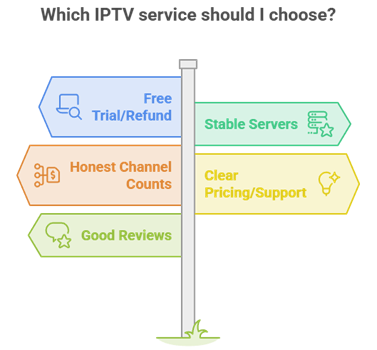
Even a perfect setup cannot rescue a poor provider. The service you choose decides your channel quality, stability, and whether streams hold up at peak time. Prioritise providers with stable servers, honest pricing, and a trial, and avoid unrealistic “all channels for a few dollars” offers. Our list of the best IPTV in Canada is a good place to start.
- Free trial or refund: Test playback on your actual TV before paying for a long plan.
- Stable servers: Look for providers with Canadian or North American nodes for lower lag and fewer drops.
- Honest channel counts: Be wary of inflated numbers, since reliability beats a huge but unstable list.
- Clear pricing and support: Transparent plans and responsive help signal a legitimate service.
- Good reviews: Check that others report stable peak-time streaming, not just cheap headline prices.
Conclusion
Setting up IPTV on a Smart TV comes down to three things: a reliable app, your correct login details, and a stable connection. Install a supported player for your brand, enter your M3U or Xtream Codes carefully, load the EPG, and you will have live TV and VOD on the big screen within minutes. If playback stutters, tune the connection and player before blaming the app, and if problems persist across devices, the provider is usually the real issue. Take a few careful minutes at setup and the experience stays smooth for the long run.
FAQs
Which IPTV app is best for a Smart TV?
Choose a maintained app listed for the television’s actual operating system. Confirm the developer, recent updates, supported login format and privacy policy; there is no single app that is best across Tizen, webOS, Google TV and Fire TV.
Can I set up IPTV on any Smart TV?
Most current televisions can use an authorised source, but the method differs. Some have native store apps, while older or limited platforms may work better with a supported external device. Check the model and operating-system version first.
Do I need an M3U link or Xtream Codes?
Use the format supplied by your authorised source and supported by the chosen player. M3U is a playlist address; API-style credentials separate the server, username and password. Copy the details exactly and keep them private.
Why will my IPTV channels not load on my Smart TV?
Check account status, server address, username, password and television time. Then refresh the profile and test the same authorised source on another supported device. A successful second-device test points to the television app or network.
Is it legal to set up IPTV on a Smart TV in Canada?
The technology and player are neutral. Lawfulness depends on the rights attached to the programming and how it is supplied. Use a source authorised for Canada and ask the operator for specific licensing information when it is unclear.
Do I need a special device if I already have a Smart TV?
Not when the television has a maintained compatible app. An external device is useful when the built-in platform no longer receives updates, lacks the required login format or performs poorly.
How much internet speed do I need for IPTV on a Smart TV?
Allow roughly 15–25 Mbps for each HD stream and more headroom for higher resolution or other household traffic. Consistent latency and low packet loss matter more than a single peak speed result.