

IPTV on Plex is possible, but Plex does not offer a native box where you can paste an M3U playlist. Its official Live TV & DVR workflow is designed around a compatible network tuner and antenna. To bring an authorised M3U source into Plex, you need a separate community bridge that presents those streams to Plex as a tuner.
This guide explains both routes, including M3U and XMLTV configuration, client-device checks, and the point at which a dedicated IPTV player is the better option. I would first confirm that the playlist works in a supported direct player. That prevents a source problem from being misdiagnosed as a Plex, proxy, guide, or transcoding fault.
Understand What Plex Officially Supports
Plex separates several features that are easy to confuse. Its free streaming catalogue is supplied by Plex and does not import your provider playlist. Its official personal Live TV workflow receives over-the-air broadcasts through a compatible tuner connected to Plex Media Server. An M3U proxy is a third-party layer: it reads your playlist, builds a tuner-like interface, and passes selected channels to Plex. That last route may work, but Plex does not document it as native M3U support.
| Route | What supplies channels | Main requirement | Support position |
|---|---|---|---|
| Plex free Live TV | Plex’s own ad-supported catalogue | Plex app and account availability | Official Plex feature |
| Plex Live TV & DVR | Local over-the-air broadcasts | Compatible tuner and antenna | Official Plex feature |
| M3U through Threadfin or xTeVe | Your authorised playlist source | Always-on community proxy | Independent, unsupported integration |
| Direct IPTV player | Your authorised playlist source | Compatible app on each device | Outside Plex |
Plex’s current DVR and Live TV FAQ says live viewing from a compatible tuner and antenna is available without Plex Pass, while recording requires an active Plex Pass. Community proxy documentation can set stricter requirements; Threadfin currently lists Plex Pass among its Plex prerequisites. Treat the project’s requirements and Plex’s official tuner rules as separate statements rather than assuming every live-TV route has identical access.
Check the Server, Playlist, and Rights Before Setup
You need a current Plex Media Server on a computer or NAS that remains awake during viewing, a supported Plex client, and a stable local network. For the community method, you also need a separate host for the proxy or permission to run it alongside the server. Most importantly, use an M3U playlist and XMLTV guide supplied by a broadcaster, organisation, or service that authorises your access and the devices you plan to use.
- Verify the source first: Open one permitted channel in a direct player before adding another software layer.
- Confirm simultaneous streams: A proxy tuner count must not exceed the connection allowance attached to the source account.
- Keep XMLTV optional: Live video can work without a guide, but channel scheduling and recording are harder without matched programme data.
- Check the server path: The proxy and Plex server must be able to reach each other reliably on the local network.
- Plan for transcoding: A client that cannot direct play the stream may make Plex convert it, increasing server load.
A lawful service should identify its operator, billing terms, supported devices, connection limits, cancellation route, and the territories in which it may offer the channels. Do not use public playlist dumps, credentials copied from forums, or a seller that cannot explain content rights. A clean M3U file format proves only that the list is readable; it does not prove that any stream inside it is authorised.
Choose Between a Tuner and a Community M3U Bridge
Choose the official tuner route for local antenna channels when you want the most supportable Plex experience. Plex maintains a list of supported tuners and antennas, and its setup flow is designed for those devices. Choose a community bridge only when your lawful source is an M3U playlist and you accept extra maintenance, incomplete compatibility, and the possibility that a Plex or proxy update changes the workflow.
Threadfin describes itself as an M3U proxy for Plex DVR and is based on xTeVe. Its public project documentation lists M3U and XMLTV merging, channel filtering, mapping, logos, adjustable tuner counts, and Plex-compatible guide output. These are community claims from an independent project, not Plex product guarantees. Older tutorials often use xTeVe; Threadfin is the maintained fork many current users consider, while its own README still refers readers to older xTeVe configuration documentation.
Avoid legacy Plex “Channels” or plugin tutorials as the main 2026 method. Plex’s plugin overview says plugin support is being removed over time, and the visual Plugin Directory was discontinued years ago. A tuner-emulation proxy sits outside that retired plugin model, but it remains third-party software that you must secure, update, and troubleshoot yourself.
Configure the M3U and XMLTV Inputs in the Proxy
Install the bridge from its official project page using the package or container method documented for your host. Do not copy a random binary or compose file from an unrelated tutorial. Open its local web interface, create an administrator password if the build supports one, and keep the interface private to your network. The exact labels can change between releases, so follow the current project documentation rather than memorising screenshots from an old version.
- Add the M3U URL or local playlist file supplied for your account. Treat a tokenised URL like a password.
- Add the matching XMLTV URL or file when the source provides one. Do not substitute scraped guide data.
- Refresh both inputs and confirm the proxy reports channels before touching Plex.
- Filter out channels you do not need. Smaller line-ups reduce mapping work and make faults easier to isolate.
- Map each enabled channel to the correct XMLTV entry, checking names, identifiers, time zone, and logo source.
- Set the available tuner count no higher than the source’s permitted simultaneous streams.
- Save the configuration, then record the local tuner address and XMLTV output address that the proxy exposes for Plex.
The Threadfin repository is the primary source for its requirements and release guidance. Keep a private copy of your channel mapping and configuration before updating. Never publish screenshots that expose a provider username, password, token, server address, or full playlist URL.
Add the Virtual Tuner to Plex Live TV & DVR
Open Plex Web App as the server owner, go to the server’s Live TV & DVR settings, and start DVR setup. Plex may discover the proxy as a network tuner. If discovery fails, use the manual tuner-address option when available and enter the proxy’s local address. Stop if Plex cannot see the device; importing guide data will not repair basic network discovery.
- Select the discovered virtual tuner and check that Plex reports the expected channel count.
- Choose the channel line-up carefully. Do not enable every item simply because the playlist contains it.
- When Plex offers guide setup, select the XMLTV option and enter the proxy’s generated XMLTV location.
- Review the channel-to-guide mapping. Correct missing or duplicate matches before completing setup.
- Finish the DVR setup and allow Plex to refresh the guide.
- Open Live TV in Plex and test one authorised low-demand channel, then one higher-resolution channel.
- Restart the proxy and Plex server separately to confirm the tuner and mapping return after a normal reboot.
Plex’s official XMLTV guide instructions explain that custom guide data is configured during DVR setup. XMLTV supplies programme metadata; it does not carry the video stream. If channels play but the grid is blank, investigate the guide URL, identifiers, mapping, and time zone before changing the playlist.
Check Playback on Each Plex Client
Live TV support varies by Plex app, and a server-side channel list does not guarantee identical playback on every television, phone, browser, or streaming box. Plex’s DVR FAQ lists the current clients that can watch live TV and the clients that can schedule recordings. Test the device that matters most before reorganising the full guide.
- Start locally: Test on the same network as the server before enabling remote viewing.
- Compare direct play: A stream that plays without conversion uses less server CPU than one that requires transcoding.
- Watch the connection count: Changing channels can briefly overlap sessions, which may matter on a one-stream account.
- Separate recording rights: Plex Pass enables DVR recording, but it does not expand the source’s licence or simultaneous-stream allowance.
- Confirm remote access: Test secure Plex Remote Access separately; never expose the proxy dashboard directly to the public internet.
For a television client, check remote navigation, channel changing, audio tracks, subtitles, and return-to-guide behaviour. On mobile data, also consider the server’s upload speed and any required transcoding. A successful test in Plex Web on the server computer proves only one client path; it does not validate every codec or network route.
Troubleshoot the Layer That Is Actually Failing
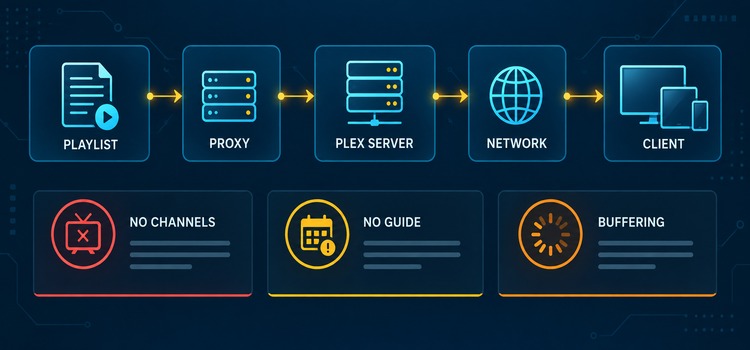
Treat the path as five separate layers: playlist, proxy, Plex server, network, and client. Change one layer at a time and repeat the same channel test. If the authorised source fails in a direct player, the proxy cannot repair it. If it works in the proxy preview but not Plex, focus on tuner discovery, mapping, or stream compatibility.
| Symptom | Likely layer | First useful check |
|---|---|---|
| Plex finds no tuner | Proxy or local network | Confirm the bridge is running and reachable from the Plex server |
| Tuner appears with zero channels | M3U import or filtering | Refresh the authorised playlist and verify at least one channel is enabled |
| Channels appear but do not play | Source, connection limit, or codec | Test the same channel directly and close playback on other devices |
| Video works but guide is empty | XMLTV or mapping | Check the guide output, channel IDs, time zone, and mapping |
| Playback buffers on one client | Client path or transcoding | Compare another client and inspect whether Plex is transcoding |
| Remote viewing fails | Plex Remote Access or upload path | Verify local playback first, then review Plex’s remote-access status |
For repeated pauses, work through the site’s IPTV buffering guide after confirming that the proxy is not remuxing or transcoding unexpectedly. Keep the source URL out of logs you share publicly. A short description of the failing layer, channel codec, client, and time is safer and more useful than posting a full playlist.
Protect Credentials, the Proxy, and Remote Access
An M3U URL often contains credentials or a bearer token. Store it only in the proxy configuration, restrict access to that configuration directory, and avoid cloud-syncing it into a shared folder. Run the proxy under a limited account where practical, keep the host updated, and back up only the files required to restore your mapping. If the source supports token rotation, replace a leaked address immediately.
- Keep it local: Bind the proxy dashboard to the private network or protect it behind an authenticated gateway.
- Use official releases: Download Plex and the chosen bridge from their official project pages, not repackaged bundles.
- Limit logs: Check whether debug output records playlist addresses before sending a log to a forum or support contact.
- Protect recordings: Plex DVR files may reveal viewing history and need appropriate storage permissions and backups.
- Review sharing: Do not use Plex Home or library sharing to redistribute channels beyond the rights granted by the source.
Remote access should terminate at Plex, not at an unauthenticated proxy panel. Use Plex’s documented Remote Access controls and check the server’s secure-connection status. A VPN can be useful for reaching a private home network, but it does not legalise an unauthorised playlist or override territorial rights.
Know When Plex Is the Wrong IPTV Player
The proxy route is attractive when you already run Plex, want a single living-room interface, and value a consolidated guide. It is less attractive when you want quick playlist editing, provider-specific catch-up, rapid channel switching, several accounts, or minimal server maintenance. Plex can also reject DRM-protected channels, and an M3U bridge cannot remove DRM or create rights the account does not have.
- Use Plex officially: Choose a supported tuner and antenna for local broadcasts and a well-documented DVR path.
- Use a direct player: Choose a reputable app that natively accepts your authorised M3U or Xtream-style account.
- Use Jellyfin: Consider it when an open-source server with built-in M3U tuner configuration better fits your household.
- Use Kodi: Consider PVR IPTV Simple Client when you want direct M3U and XMLTV control on one media centre.
- Use the provider app: Prefer it when the lawful service requires DRM, account-specific features, or an official client.
Before choosing a direct client, understand whether your source uses an M3U text playlist or an HLS media playlist. The site’s M3U vs M3U8 guide explains the practical distinction. Choose the simplest supported path that preserves the source’s security and terms.
Final Verdict: Should You Use IPTV on Plex?
Use Plex for IPTV when you understand that native M3U import is absent, you already maintain a dependable server, and you are comfortable operating an independent tuner-emulation proxy. For local antenna television, use Plex’s official tuner workflow. For a simple authorised playlist, a direct IPTV player is usually easier, faster to troubleshoot, and less exposed to changes across three separate projects.
FAQs
Can Plex open an M3U playlist directly?
No native M3U-import field is documented in Plex’s official Live TV & DVR setup. A community bridge such as Threadfin or xTeVe can present selected M3U channels as a tuner, but that integration is independent of Plex and requires its own maintenance.
Do I need Plex Pass for IPTV?
Plex says live viewing from a compatible tuner and antenna is free, while DVR recording requires Plex Pass. Threadfin’s project requirements currently list Plex Pass for its Plex integration. Check both the official Plex feature and the community bridge you intend to use.
What is the difference between M3U and XMLTV in Plex?
The M3U source points to channels and streams. XMLTV supplies programme names, times, and other guide metadata. A channel can play while its guide remains blank when the XMLTV location, time zone, or channel mapping is wrong.
Why does Plex show channels that will not play?
Plex may retain a channel list even when the source token expired, the account reached its connection limit, or the client cannot play the stream codec. Test the same authorised channel directly, then check the proxy log and Plex transcoding status without exposing credentials.
Is using IPTV with Plex legal?
The software path is not the deciding factor. Legality depends on the source’s authority to distribute each channel, your account terms, recording rights, and territorial restrictions. Use your own authorised playlist, respect connection limits, and do not redistribute streams or credentials.