
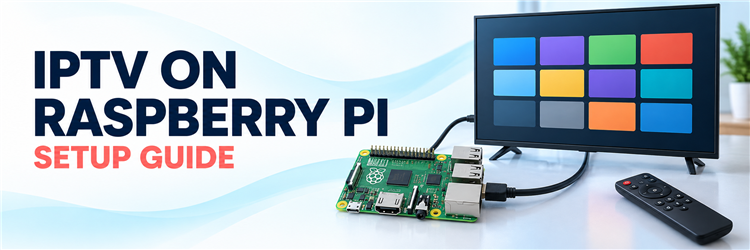
IPTV on Raspberry Pi is easiest to set up as a dedicated living-room player: write LibreELEC to a separate microSD card, boot Kodi, install its PVR IPTV Simple Client add-on, and enter an M3U playlist you are authorised to use. The Pi and the add-on are playback tools. Neither supplies television channels, a subscription, or permission to watch a stream.
This guide takes you from choosing the right Pi image to seeing a channel in Kodi’s TV section. It also explains what to check when the playlist loads but video, programme listings, or the remote do not. I would start with one known-working, authorised channel before importing a large playlist; that keeps source, network, and decoder faults easier to separate.
Choose a Raspberry Pi Setup That Matches Your Goal
For a television connected by HDMI, LibreELEC is the clear route in this guide because it boots straight into Kodi and offers separate Raspberry Pi images through its official installer. A desktop Raspberry Pi OS installation may suit someone who also needs a general computer, but its player packages and hardware acceleration can differ by OS release. Do not assume an Android-only IPTV app, a Fire TV APK, or a TiviMate tutorial applies to Raspberry Pi OS. Check the app’s supported operating system before trying to install it.
| Route | Best fit | Important limit |
|---|---|---|
| LibreELEC + Kodi | Dedicated TV interface with an M3U live-TV source and optional XMLTV guide | Replaces the contents of the selected boot card |
| Raspberry Pi OS + desktop player | Pi also used for browsing, files, or other desktop tasks | Player and codec support must be checked for the installed OS |
| Android IPTV app tutorials | Only a separately verified compatible Android build | Most Android TV instructions do not describe standard Raspberry Pi OS or LibreELEC |
Check the Hardware, Source, and Network First
You need a compatible Raspberry Pi board, its appropriate power supply, a microSD card you can erase, a card reader for your computer, an HDMI cable and display, and a keyboard or another way to control Kodi initially. A wired network connection is useful while diagnosing playback because it removes Wi-Fi signal strength from the first test. Keep a copy of anything important on the card: the LibreELEC writing step overwrites its contents.
- Match the board: Choose the image for the Pi generation shown by the LibreELEC creator, rather than a similarly named generic Linux image.
- Keep the source private: Obtain an M3U file or URL directly from a broadcaster, organisation, or provider that authorises your use. A URL may contain credentials or a token.
- Ask about the guide: If you want programme schedules, check whether the same authorised source offers XMLTV data. The player cannot create missing listings.
- Plan a control method: Keep a USB keyboard available for first boot, even if you intend to use the TV remote through HDMI-CEC later.
Pi models also differ in video decoding. LibreELEC’s Raspberry Pi hardware notes identify Pi 4 and Pi 5 as the generations with native HEVC decoding. Older boards may struggle with demanding HEVC streams, and a 1 GB Pi 4 or Pi 5 is a poor choice for normal 4K playback. A working menu does not prove that a particular stream codec or bitrate will play smoothly.
Before imaging, label the card and record which Pi it belongs to. If the device already runs a home automation service, file server, or another project, use a fresh card so those installations remain intact. Write down the TV input and network type you will test. These small details help when a successful boot is followed by a black screen, a silent stream, or a remote that appears unresponsive. If possible, keep the Pi close enough to the router for a temporary Ethernet test, even when its permanent location will use Wi-Fi.
Write LibreELEC to a Separate microSD Card
The official LibreELEC media-creation guide documents its USB-SD Creator and Raspberry Pi Imager as installation routes. Use the current stable image offered for your exact board. There is no need to copy an old image name or version from a video: the creator presents the available image when you make the card.
- Download the creator from the official LibreELEC site on your computer and open it.
- Select the Raspberry Pi model shown in the device list, then select the latest stable image it offers.
- Download the image or select a previously downloaded official image file.
- Insert the expendable microSD card and check its drive name and capacity twice. Writing erases the selected target.
- Write the image, wait for completion, safely eject the card, and put it in the Pi.
- Connect HDMI, a keyboard, network, and power. Complete LibreELEC’s on-screen first-run prompts in Kodi.
If the Pi shows no picture, verify the display is on the connected HDMI input before rewriting the card. Also check that the image matches the board and the power supply is suitable for it. A failed first boot is a hardware or imaging problem until Kodi appears; changing playlist settings cannot fix it.
Install Kodi’s PVR IPTV Simple Client
Kodi’s PVR IPTV Simple Client documentation places the add-on under Settings → Add-ons → Install from repository → PVR clients. Install it from the repository available in Kodi, then open its configuration. The add-on reads M3U playlists for live TV and can use XMLTV for an electronic programme guide. It is a client, not a channel catalogue or a source of broadcasting rights.
- In Kodi, open Settings, then Add-ons and Install from repository.
- Open PVR clients, select PVR IPTV Simple Client, and choose Install.
- Return to My add-ons → PVR clients, select the installed client, and open Configure.
- Choose the playlist location that matches what your authorised source supplied: a local file on storage Kodi can access, or a remote URL.
- Save the configuration and enable the client if Kodi has not enabled it already. Allow Kodi to load the channels; restart Kodi if it asks.
Menu wording can change between Kodi releases, so follow the add-on’s labels on the installed system. If another PVR client is enabled, identify which one is responsible for the TV section before changing both at once. Keep a note of the image, Kodi, and add-on versions shown on your own device for later troubleshooting rather than relying on version numbers in an old guide.
Import an Authorised Playlist and Optional XMLTV Guide
Enter only a playlist supplied for your own account or a source that explicitly permits access. Paste a private URL exactly as given; missing characters, spaces, an expired token, or an unsupported source restriction can make a perfectly installed player look broken. Do not post the full URL in forums or use an unknown online “playlist checker.” If the source gives you a local M3U file, move it to storage Kodi can read and select the file path instead of claiming it is a network address.
- In the PVR client configuration, set the M3U playlist location and enter the supplied URL or local file path.
- If the source provides XMLTV, enter its guide location in the EPG section. Leave this optional field empty when no guide exists.
- Save, let the client reload, then open Kodi’s TV or Channels section and select one known-authorised channel.
- Check video and audio first. Only then inspect channel groups, logos, and schedule data.
- Restart Kodi once and confirm that the playlist and channel list persist.
An M3U is a list of media references, while XMLTV supplies programme data. Matching the two depends on the source’s channel identifiers; Kodi’s add-on notes that tvg-id and related tags help map a channel to a guide entry. A blank EPG alongside working video therefore points first to missing guide data, mapping, or time settings, not to an absent video decoder.
Keep the original playlist outside the Pi in a private place. That gives you a known input to compare after an update or card failure without exposing it in a shared document. If a source rotates its address or token, update the configured input through Kodi instead of editing random channel entries. When an account has a connection limit, close playback on another device before deciding the Pi is incompatible. A client can display channel names from a cached list even after the underlying source can no longer be opened.
Play Channels and Set Up a Remote
Once channels appear, open a small sample rather than judging the whole playlist by one stream. Try a low-demand channel, then a higher-resolution one your source permits. Check whether audio starts, the picture moves steadily, and Kodi’s pause and back controls behave as expected. If one item fails while others work, preserve its name and failure time for the source operator; avoid resetting the entire Pi.
For living-room control, first try the TV remote over HDMI-CEC if the television supports and enables it. Kodi’s CEC guidance explains that control travels through HDMI and that manufacturers may use different feature names. Test navigation, select, back, and volume separately. If CEC does not pass the buttons you need, retain the keyboard or choose a separately verified Kodi-compatible remote; do not assume a random infrared remote works with the bare Pi.
Troubleshoot the Failure at the Right Layer
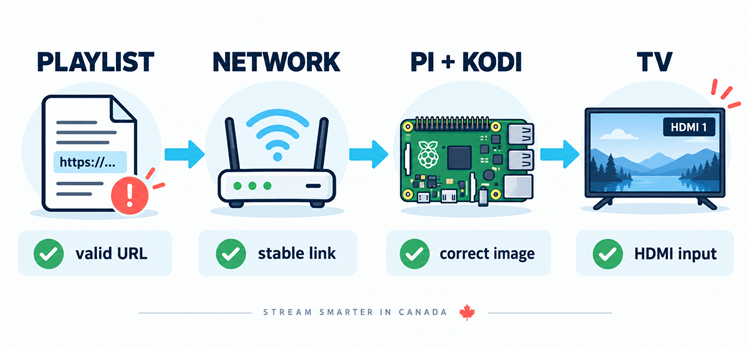
Work from the left side of the chain toward the TV. A source that fails on every authorised device needs a source-side check. A source that works elsewhere but fails on the Pi deserves a network, decoder, or Kodi configuration check. Change one variable, retest the same channel, and keep the result; simultaneous changes make a temporary recovery hard to explain.
| Symptom | Likely layer | First useful check |
|---|---|---|
| No Kodi screen | Image, power, HDMI, display input | Confirm the correct board image and TV input |
| No channels | Playlist or source account | Recheck the private URL or file path and whether it remains authorised |
| Video freezes | Source, network, bitrate, or codec | Compare another authorised channel, then try wired networking |
| Audio but black picture | Video codec or decoding | Compare a lower-demand stream and the board’s codec support |
| Video works, guide blank | XMLTV supply or channel mapping | Confirm guide URL, time zone, and matching channel IDs |
| Remote keys do nothing | CEC setting or remote compatibility | Test keyboard control, then TV CEC settings |
For repeated pauses, the site’s IPTV buffering guide walks through connection and source checks in more detail. On an older Pi, also compare the actual video codec with LibreELEC’s model notes; reducing display resolution alone does not turn an unsupported codec into a supported one.
Know the Limits Before Using the Pi as a Main TV Box
A Raspberry Pi is flexible, but it is not a universal replacement for every commercial streaming box. LibreELEC is a purpose-built Kodi system, so a service that requires a protected proprietary app or browser-based rights management may offer no usable Pi route. An M3U link also does not promise EPG, catch-up, recordings, subtitles, or simultaneous streams. Those features depend on the source, account, client, and hardware together.
- Codec ceiling: Pi generation and memory affect what demanding HEVC or 4K streams can decode.
- Account limit: Installing Kodi does not add another permitted connection to a source subscription.
- Guide limit: XMLTV needs to be provided and mapped; Kodi cannot infer an accurate schedule from video alone.
- Rights limit: A legal player does not authorise a copied or redistributed playlist. Confirm the source’s permission for the content and your location.
- Maintenance: Keep the boot image and add-on updated through their official channels and retain a backup of your private configuration.
If you need to understand why a playlist address may point to different stream formats, read the site’s M3U vs M3U8 explainer. For this setup, the practical distinction is simple: feed Kodi the playlist format the authorised source supplies, and verify one stream before troubleshooting more advanced features.
Final Verdict: Is IPTV on Raspberry Pi Practical?
Yes, when you have a supported Pi, an official LibreELEC image, a working authorised M3U source, and a willingness to configure Kodi. The setup gives you a focused live-TV interface without pretending that the player supplies channels. Use a separate card so the experiment is reversible, test a small playlist, and confirm remote control and codec fit before making the Pi your everyday TV device.
FAQs
Does Raspberry Pi come with IPTV channels?
No. Raspberry Pi hardware, LibreELEC, Kodi, and the PVR client are playback components. You need a separate authorised source for channels, and any account or territorial conditions still apply.
Which Raspberry Pi model should I use?
Choose a board for which LibreELEC currently offers a matching image, then compare its video-decoding support with the streams you actually intend to watch. Pi 4 and Pi 5 have stronger HEVC support than older generations; the source’s bitrate and codec matter as much as menu speed.
Can I use an M3U URL instead of a file?
Yes. Kodi’s PVR IPTV Simple Client can read an M3U source from a remote URL or local file. Pick the corresponding location in its configuration. Treat a private URL as a credential and never publish it in a screenshot or troubleshooting post.
Why are the channels visible but the guide empty?
The M3U playlist and XMLTV guide are separate inputs. Confirm the authorised source supplies guide data, the XMLTV location is correct, the channel IDs map, and the Pi’s date and time zone are accurate.
Will a TV remote control Kodi on the Pi?
Often, through HDMI-CEC when the TV and connected path support it and the feature is enabled. Test the essential keys on your exact setup. Keep a keyboard for first boot and recovery if CEC is unavailable or incomplete.